Subaru Starlink: Complete Guide to Setup, Reset, and Troubleshooting
If your Subaru Starlink screen is stuck on the Subaru logo, unresponsive to touch, or looping on startup, a hard reset usually fixes it without a dealer visit. For most models (2015–2023), press and hold the power/volume knob for 10–15 seconds until the screen goes black and reboots. If that doesn’t work, disconnect the car’s battery negative terminal for 2–3 minutes, or check the fuse labeled “Backup” or “Audio” in the interior fuse box. Below we walk through the full setup, common fixes, and when to escalate.
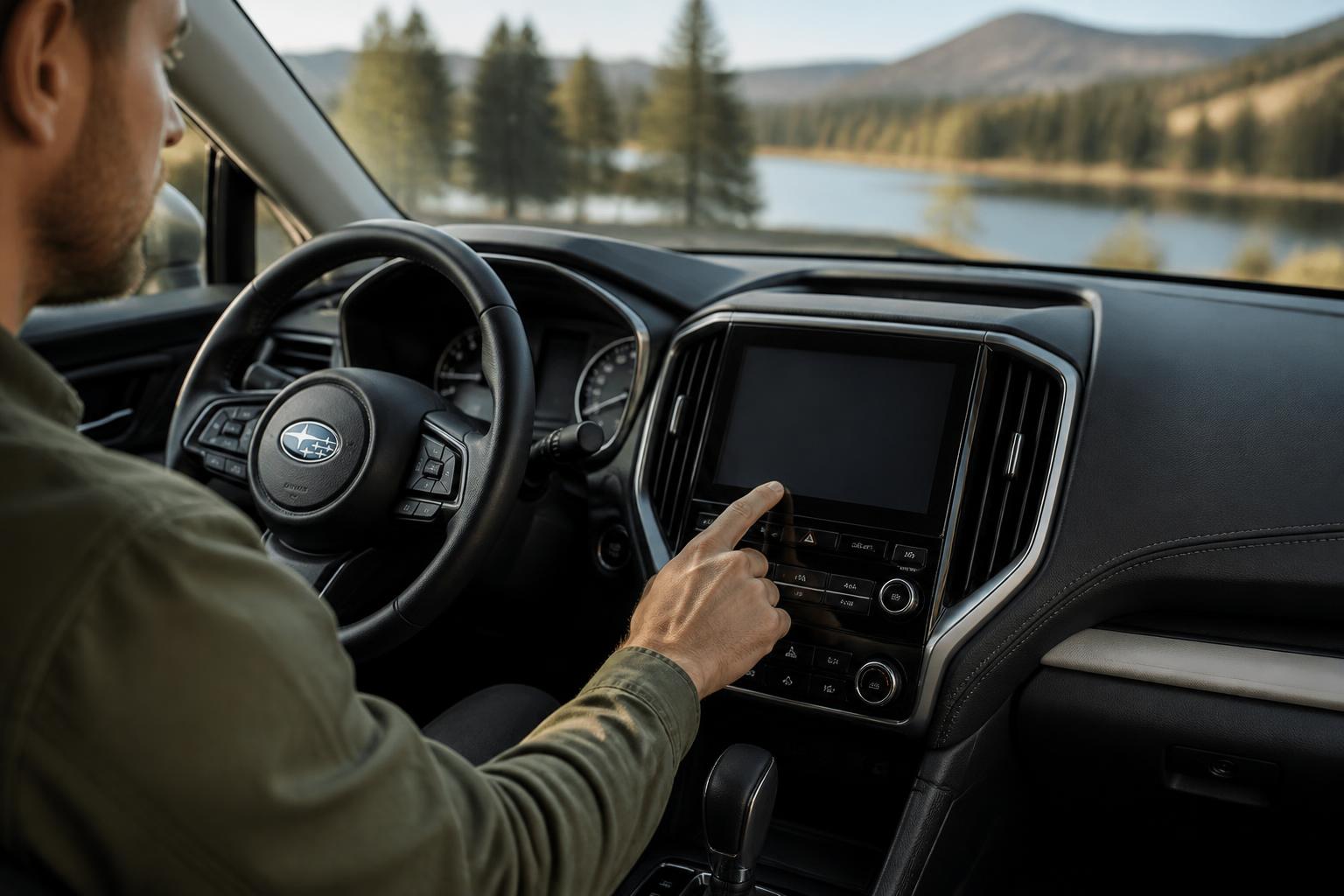
Resetting a Frozen Starlink Screen
Soft Reset (No Tools Needed)
This works on nearly all Starlink units from model year 2015 onward.
1. Press and hold the volume knob (the same knob you use to turn audio up/down) for 10–15 seconds.
2. Release when the screen goes blank. The Subaru logo should reappear, followed by a normal boot sequence.
3. If the screen stays black for more than 30 seconds, try again. Hold for a full 15 seconds.
Verification: After reboot, the screen should display the Subaru logo for a few seconds, then load the home screen within 30 seconds. Test touch responsiveness by swiping across the home screen. If the screen appears but touch is unresponsive, proceed to the hard reset below. If the screen works but Bluetooth or CarPlay doesn’t, skip to the Bluetooth troubleshooting section.
Hard Reset (Battery Disconnect)
Use this only when the soft reset doesn’t work, or the screen is completely unresponsive.
- Open the hood and locate the negative battery terminal (marked `–`).
- Use a 10mm wrench to loosen the nut and remove the cable. Tape the cable end so it doesn’t touch metal.
- Wait 3 minutes minimum. For 2019+ models, some require 5 minutes to fully drain residual power.
- Reconnect the negative terminal. Tighten the nut.
- Start the engine. The infotainment system may take up to 2 minutes to fully reboot.
Note: Disconnecting the battery will reset your clock, radio presets, and memory seat settings (if equipped). You’ll need to re-enter any personalized settings.
Common Failure Mode: Recurring Freeze
If the screen freezes again within a few days of resetting, the issue may be a failing head unit or a software glitch that requires a dealer firmware update. This is especially common on 2018–2019 Outback models with the 7‑inch screen. A hard reset may provide only temporary relief. In that case, schedule a service appointment – a firmware flash at the dealer usually costs $100–$150 if out of warranty (or covered under warranty).
Model-Year Exceptions
| Model Year Range | Reset Method | Notes |
|---|---|---|
| 2015–2018 | Soft reset: hold volume knob 10s | May also require a 1–2 minute wait after battery disconnect |
| 2019–2022 | Soft reset: hold volume knob 15s | Some 2020 Outback/Legacy units require holding both volume knob and “Home” button simultaneously for 10s |
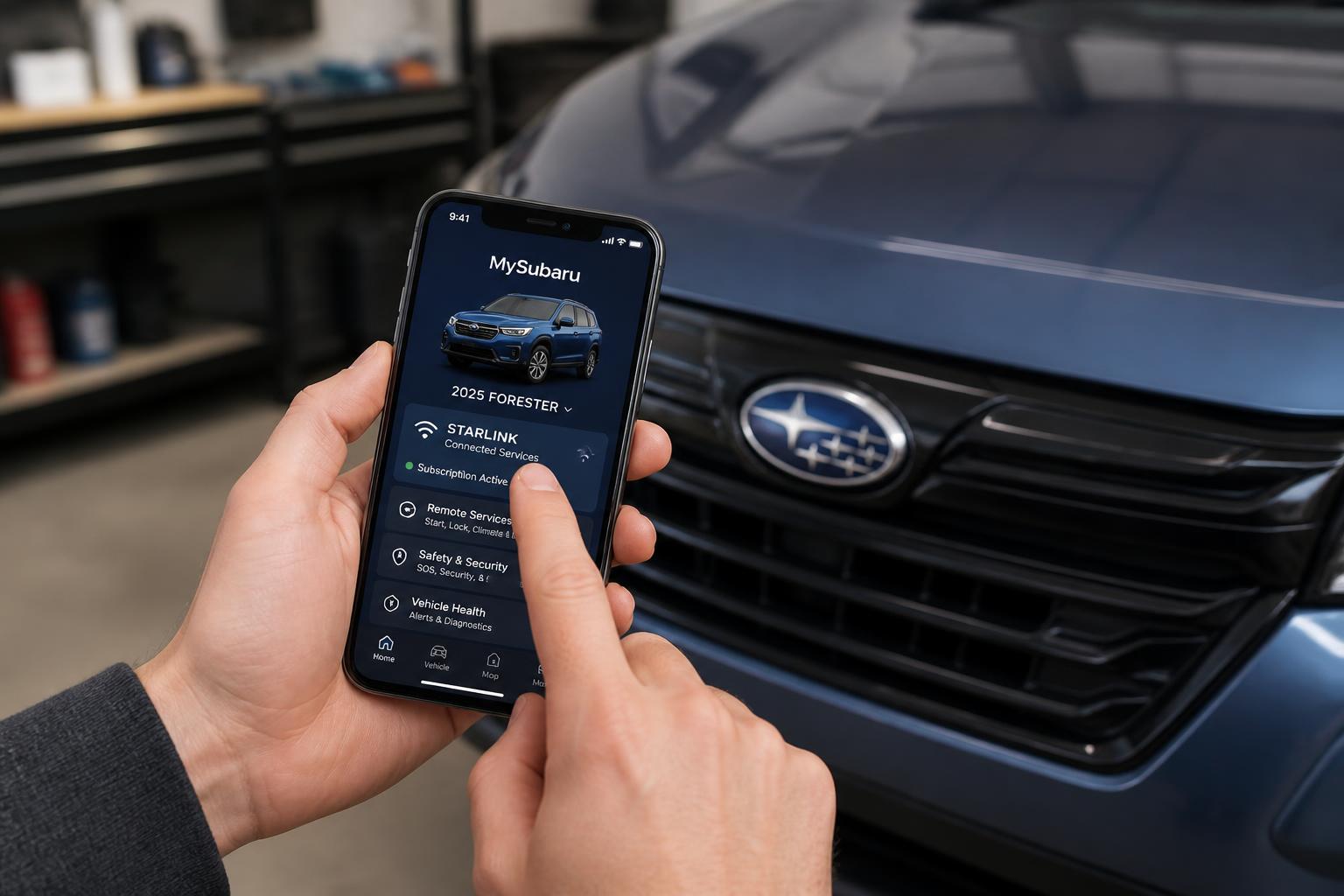
| 2023+ (newer 11.6‑inch screen) | Soft reset same as 2019–2022 | Hold volume knob 15s. If that fails, try pressing “Tune” and “Voice” buttons together for 10s (tested on 2023 Outback) |
Setting Up Starlink (MySubaru App & Subscription)
You need two things: a Starlink subscription (via the MySubaru portal) and the MySubaru app on your smartphone.
Subscription Tiers (US Market)
- Safety and Security Plus – Automatic collision notification, roadside assistance, remote lock/unlock, remote engine start (on compatible trims). $99/year (first 3 years often free on new cars).
- Safety Plus – Basic SOS, stolen vehicle recovery, maintenance alerts. $75/year.
- Remote Engine Start (separate add-on on some models) – $49/year.
- Wi-Fi Hotspot – Requires a data plan via AT&T (subscription managed inside the car’s Starlink menu under “Data Connection”).
Step-by-Step Setup
1. Create a MySubaru account at mysubaru.com or through the app. You’ll need your VIN and proof of ownership.
2. Download the MySubaru app (iOS/Android). Log in with the same credentials.
3. Pair your phone via Bluetooth (see next section) if you want hands-free calling and audio streaming.
4. Activate remote services in the app: Go to the “Service” tab, select “Remote Engine Start” or “Remote Lock/Unlock,” and follow the prompts. The car must be in an area with cellular coverage. Note: On some 2020+ models, the dealer must first enable remote start hardware on the car side – if the app shows “not available,” ask the dealer to verify registration.
5. Enable Wi-Fi Hotspot (if equipped): In the car’s Starlink settings, choose “Wi-Fi Hotspot,” then “Enable.” You’ll get a network name and password; manage the plan through AT&T.
Evidence: According to Subaru’s 2023 owner’s manual, remote engine start via app has a 400‑foot range limit in open air and may not work in underground garages. Also, the Wi-Fi hotspot consumes data from your AT&T plan and may affect cellular connectivity for Starlink remote services.
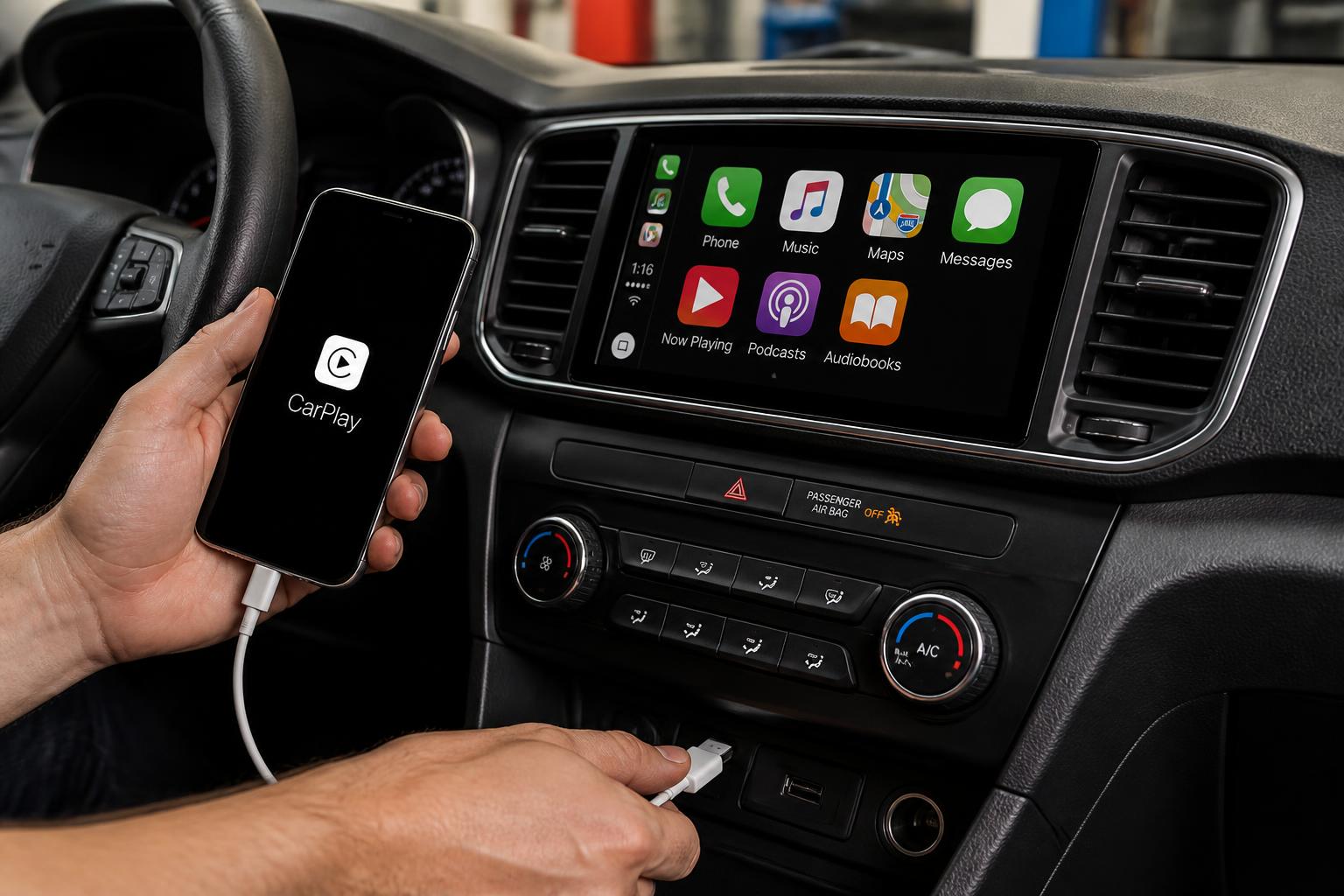
Why Setup Can Fail
If the app says “Vehicle not found,” double-check that the VIN is correct and that you are the registered owner. Some 2018–2020 models require a dealer-activated STARLINK subscription token even for trial activation – call Subaru of America’s customer service (1-800-782-2783) if you’ve already purchased the subscription but the app still won’t connect.
Pairing Apple CarPlay and Android Auto
Both systems require a wired USB connection on most Subarus (2018–2023). Wireless CarPlay is available only on 2024+ models with the upgraded 11.6‑inch screen.
Wired Connection (2018–2023)
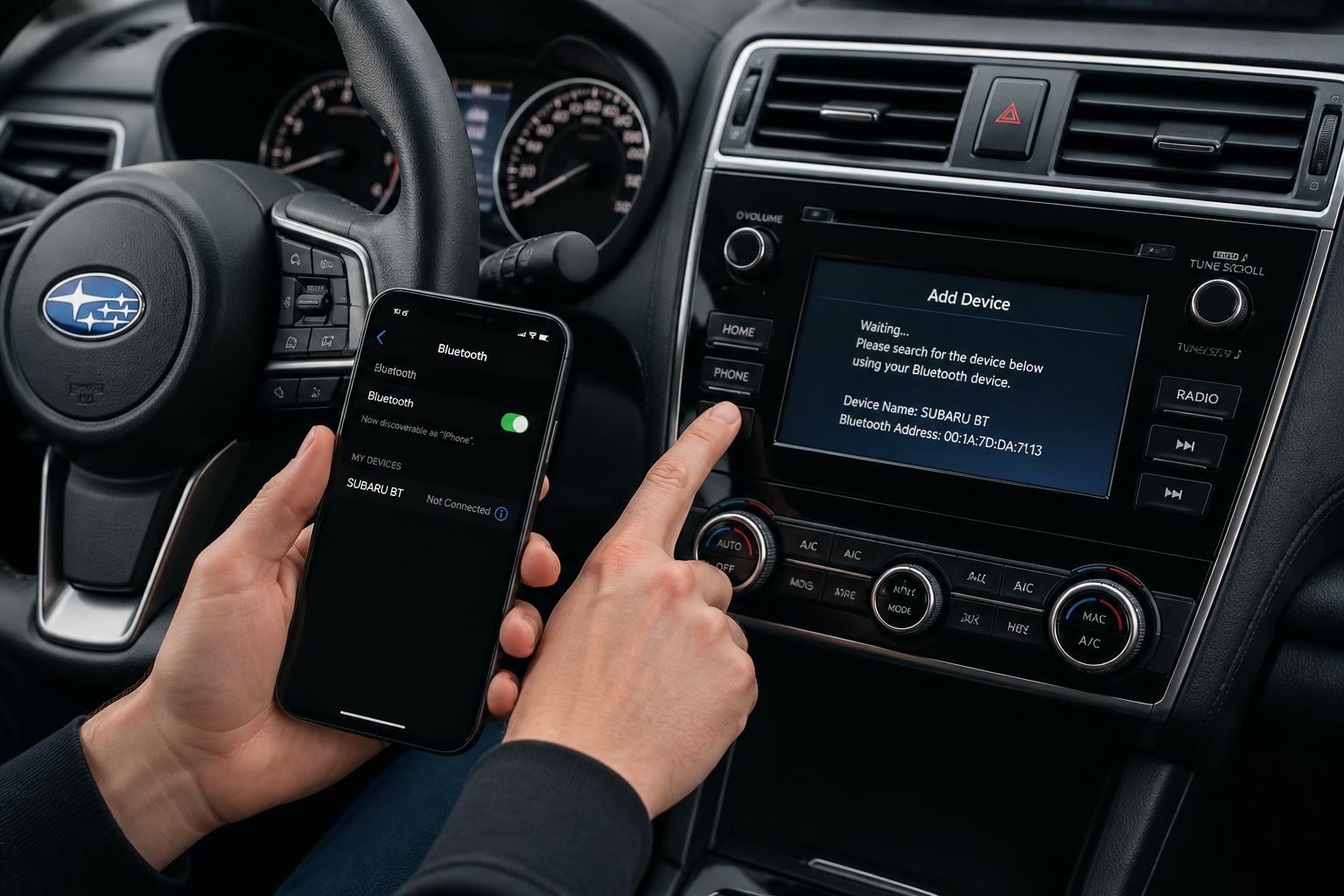
1. Plug your iPhone or Android phone into the center console USB port (the one marked with a phone icon, not the charging-only port).
2. On the Starlink home screen, select “Apple CarPlay” or “Android Auto.” The phone will prompt you to allow the connection.
3. Enable “CarPlay” in your iPhone’s Settings > General > CarPlay, or enable “Android Auto” in the phone’s Settings > Connected devices.
Common failure: If the system says “Unsupported device,” try a different USB cable – many issues are caused by a damaged or non-data cable. Also, avoid using a USB hub; plug directly into the port.
Wireless Apple CarPlay (2024+ Models)
1. Ensure Bluetooth is on and the phone is paired (see Bluetooth section below).
2. On the Starlink screen, go to Settings > CarPlay Settings > Wireless CarPlay.
3. The system will search for your phone. Accept the pairing request on both screens.
Troubleshooting Wireless: If CarPlay keeps dropping, check that your phone is within 30 feet of the car. Interference from other Wi‑Fi networks (e.g., in a parking lot) can cause disconnects. Also, reset the wireless CarPlay module: on the Starlink screen, go to Settings > General > Reset > Reset CarPlay, then re-pair.
Troubleshooting Bluetooth Connectivity
Bluetooth issues are the #1 complaint across all Subaru Starlink models. Here’s the fix order:
1. Delete and re-pair: On the Starlink screen, go to Settings > Bluetooth > Paired Devices > Forget your phone. Then on your phone, forget the car’s Bluetooth profile. Then re-pair from scratch (hold the “Phone” button on the steering wheel to start pairing).
2. Check phone’s Bluetooth version: Starlink units on 2015–2018 models support Bluetooth 3.0 only. If your phone uses Bluetooth 5.0+ (most 2020+ phones), audio may stutter. Workaround: disable “HD Audio” in the phone’s Bluetooth settings for the car (on Android) or use a wired USB connection for calls.
3. Reset the Starlink system (soft reset as above) after any firmware update on your phone – some phone OS updates conflict with Starlink’s Bluetooth stack.
4. Clear infotainment cache (hidden menu): On 2019+ models with the 11.6‑inch screen, press and hold the “Home” button for 10 seconds. A hidden service menu appears. Select “Clear Cache” and reboot. This often fixes Bluetooth not connecting after phone updates.
When to stop: If the car pairs but drops within 5 minutes of driving, and the soft/hard reset didn’t help, the Bluetooth module may need replacement. This is a dealer repair.
How Bluetooth Failures Can Appear
A common pattern: audio plays fine for the first few minutes, then cuts out or becomes garbled. This is often a sign of Bluetooth signal interference from nearby electronics (like a dashcam or USB charger). Try unplugging all accessories and see if the problem persists. If it does, and you’ve already re-paired, the head unit’s Bluetooth antenna may be failing – a dealer replacement is typical.
Updating Navigation Maps
Subaru provides one free map update within the first year of new car ownership. After that, updates cost $149–$199 per year (prices may vary). To update:
1. Check your current map version: In Starlink, go to Navigation > Settings > Map Info. Note the version number.
2. Download the update tool from subaru-maps.com (requires MySubaru login).
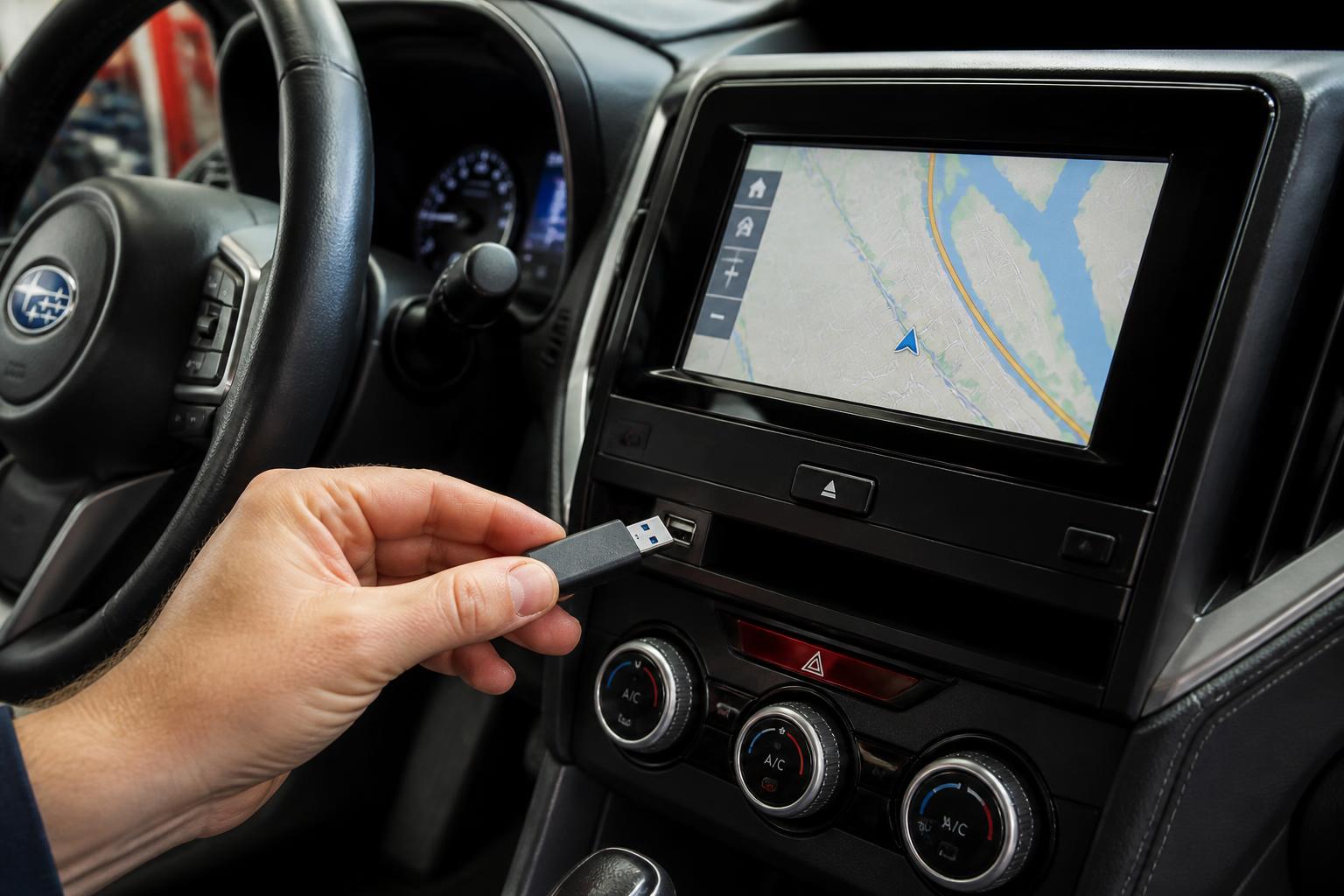
3. Use a 32GB or larger USB 2.0 drive formatted as FAT32. Insert it into your computer and run the Subaru Map Update tool – it will download and copy the files to the drive.
4. Start the car (engine running, not in accessory mode). Insert the USB drive into the center console USB port.
5. The system will detect the update automatically. Follow on-screen prompts. The process takes 30–60 minutes. Do not turn off the car during the update.
Evidence: Subaru’s official update instructions warn that interrupting the process can brick the navigation module, requiring a dealer flash. Always run the engine while updating. Also, if the update fails twice with the same error code, do not attempt a third time – visit the dealer; the USB port or firmware may be corrupted.
When to Visit the Dealer
Stop DIY troubleshooting and schedule a service appointment if:
- The soft reset and battery disconnect did not restore screen function (screen stays black or shows a broken logo pattern).
- Bluetooth or CarPlay work intermittently on every phone you try.
- The navigation update fails twice with the same error code.
- The screen shows a “System Update Required” error that persists for more than 30 minutes after a reset.
- You lose audio from all sources (radio, Bluetooth, USB) simultaneously.
Common dealer-level fixes include replacing the head unit (2015–2018 models) or flashing the firmware (2019+ models). Under warranty, these repairs are covered. Out of warranty, expect $300–$800 for a head unit replacement, depending on model and whether you source a used unit from a salvage yard ($150–$300 plus labor).
FAQ
Can I use Subaru Starlink without a subscription?
Yes. Physical screen functions (radio, CarPlay, Android Auto, Bluetooth) work without a subscription. Only remote services and SOS require an active plan.
Why is my Starlink screen laggy after I updated my phone?
Phone OS updates often change Bluetooth or USB protocols. Try a soft reset, then re-pair Bluetooth. If that fails, clear the infotainment cache via the hidden menu (Home button hold for 10 seconds).
How do I know if I have the 11.6‑inch screen or older 7‑inch screen?
The 11.6‑inch screen is portrait‑oriented (tall, like a tablet) and was introduced on 2020 Outback/Legacy and 2021 Forester. The 7‑inch screen is landscape (wide). Both use the same reset procedure for soft reset, but the hidden menu access differs.
Explore This Topic
Related guides in this cluster:

Greedy Wheels is the founder and lead editor at Wheels Greed. With over 15 years of hands-on automotive experience — from rebuilding engines in a home garage to managing fleet maintenance for a regional logistics company — he brings real-world mechanical knowledge to every guide.
His work has been featured in automotive forums, owner communities, and dealership training materials. When he’s not researching the latest car owner questions, you’ll find him at a local track day, wrenching on his project car, or testing the newest OBD2 diagnostic tools.
At Wheels Greed, every article is reviewed against manufacturer service manuals, NHTSA bulletins, and verified owner reports. No AI-generated fluff. No guesswork. Just practical answers from someone who has turned the wrench.