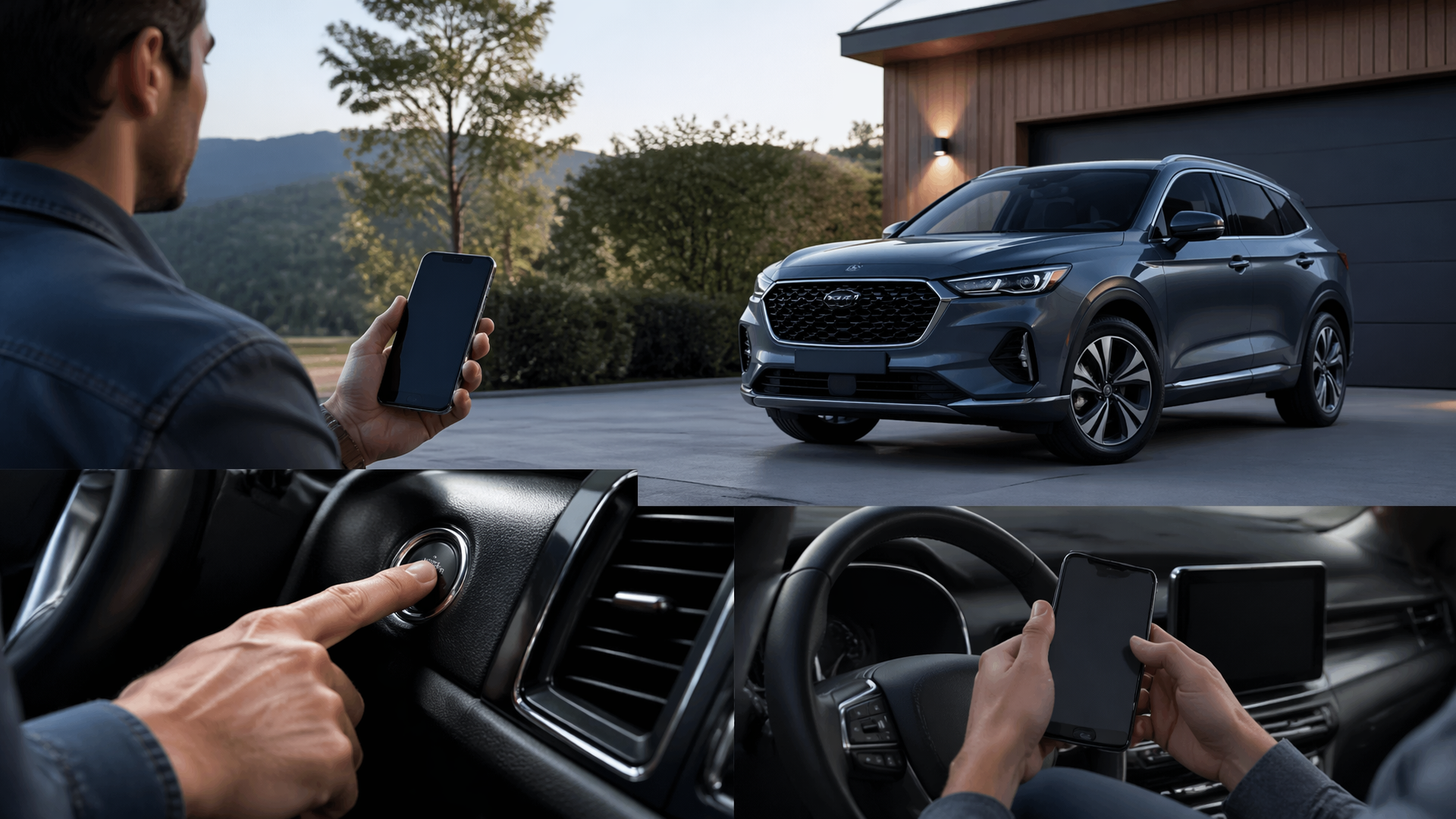
How to activate FordPass remote start and why it might not show in the app
Activating FordPass Remote Start allows you to start your vehicle from your smartphone, pre-heating or cooling the cabin before you get in. If the remote start feature isn’t appearing in your FordPass app, it could be due to several reasons, including a missing subscription, an incorrect vehicle configuration, or a temporary app glitch. This guide will walk you through the activation process and common troubleshooting steps.
Enabling FordPass Remote Start in Your Vehicle
Before you can use remote start through the FordPass app, the feature must first be enabled within your vehicle’s settings. This process can vary slightly depending on your Ford model and year.
1. Access Vehicle Settings: Navigate to the infotainment system or vehicle settings menu on your dashboard.
2. Locate Connectivity/FordPass Settings: Look for options related to “Connectivity,” “FordPass Connect,” or “Remote Features.”
3. Enable Remote Start: Find the setting for “Remote Start” and ensure it is toggled to the “On” or “Enabled” position. You may need to confirm this action.
4. Ensure FordPass Connect is Active: Confirm that your FordPass Connect modem is activated and linked to your Ford account. This is often a prerequisite for remote features.
Activating Remote Start Within the FordPass App
Once enabled in your vehicle, you’ll need to ensure the feature is active and visible within your FordPass app.
1. Open the FordPass App: Launch the FordPass app on your smartphone.
2. Navigate to Vehicle Controls: Select your vehicle from the main screen. You should see a section for “Vehicle Controls” or similar.
3. Look for the Remote Start Icon: Within the Vehicle Controls, you should find an icon or button for “Remote Start.”
4. Start Your Vehicle: Tap the Remote Start icon. The app will typically display a status message indicating it’s starting the vehicle. You may be prompted to enter a PIN for security.
Confirming Remote Start Activation
After tapping the Remote Start icon in the app, observe the vehicle. A successful remote start will typically be indicated by the engine running, the dashboard lights illuminating, and the climate control system activating to your last set preferences. The app should also update to show the vehicle is running. If the vehicle does not start, or the app shows an error, proceed to troubleshooting.
Troubleshooting: Why FordPass Remote Start Might Not Appear
If you’ve enabled the feature in your vehicle but don’t see the Remote Start option in the FordPass app, several common issues could be at play.
Check Your FordPass Subscription Status
Remote Start functionality through the FordPass app often requires a specific subscription plan, particularly for vehicles not equipped with a push-button start.
- Subscription Tiers: Ford offers different FordPass Connect subscription tiers. Ensure your current plan includes remote start capabilities. Older models or those with specific configurations might have different requirements.
- Trial Periods: If you are within a trial period, confirm that it is active and covers the remote start feature.
- Verification: Log in to your Ford account on the FordPass website or contact Ford customer support to verify your subscription details and ensure remote start is enabled for your account.
Ensure Your Vehicle is Properly Connected
For the app to communicate with your vehicle, the FordPass Connect modem must be active and successfully communicating with Ford’s servers.
- Vehicle Status: In the FordPass app, check the “Vehicle Status” section. If it shows your vehicle as “Offline” or has not updated recently, there might be a connectivity issue.
- Modem Activation: If you recently purchased the vehicle or activated FordPass, ensure the Connect modem has been fully activated and linked to your account. This sometimes requires a call to Ford or visiting a dealership.
- Signal Strength: In areas with poor cellular signal, the modem might struggle to communicate.
App and Software Updates
Outdated app versions or vehicle software can sometimes cause features to disappear or malfunction.
- App Updates: Ensure you have the latest version of the FordPass app installed on your smartphone by checking your device’s app store.
- Vehicle Software: For some advanced features, vehicle software updates might be necessary. These are typically performed by a Ford dealership. If you suspect a software issue, consult your dealer.
Model Year and Feature Availability
Remote Start availability and its integration with FordPass can vary significantly by Ford model, trim level, and model year.
- Specific Trims: Some trims might not come standard with remote start, or it may be an optional extra that needs to be added.
- Push-Button Start: FordPass Remote Start functionality is often standard on vehicles equipped with a push-button start ignition. If your vehicle has a traditional key ignition, remote start may require a separate accessory or a different subscription level.
- Consult Your Manual: Refer to your vehicle’s owner’s manual or the Ford website for specific information regarding remote start capabilities for your exact model year and trim.
A Common Failure: Incomplete Vehicle Activation
A frequent reason the remote start option doesn’t appear is that the FordPass Connect modem within the vehicle was not fully activated or linked to your Ford account. This can happen if the initial setup was rushed or interrupted. Symptoms include the app showing the vehicle as offline or missing features that should be present. The safest next step is to log into your Ford account on the FordPass website and meticulously follow the vehicle activation or re-linking process, which may require contacting Ford support for assistance if the online steps are unclear.
Resetting the FordPass App and Vehicle Connection
Sometimes, a simple reset can resolve communication glitches between the app and your vehicle.
1. Log Out and Back In: Log out of your FordPass app, close it completely, and then log back in.
2. Restart Your Phone: Turn your smartphone off and then back on.
3. Re-pair Vehicle (If Necessary): In rare cases, you might need to remove your vehicle from the FordPass app and re-add it. Follow the in-app instructions for adding a vehicle, which may involve a confirmation code sent to your vehicle.
If you have followed these steps and the FordPass Remote Start feature still does not appear in your app, it is recommended to contact Ford Customer Support or visit your local Ford dealership for further assistance. They can help diagnose specific vehicle configurations and subscription issues.

Greedy Wheels is the founder and lead editor at Wheels Greed. With over 15 years of hands-on automotive experience — from rebuilding engines in a home garage to managing fleet maintenance for a regional logistics company — he brings real-world mechanical knowledge to every guide.
His work has been featured in automotive forums, owner communities, and dealership training materials. When he’s not researching the latest car owner questions, you’ll find him at a local track day, wrenching on his project car, or testing the newest OBD2 diagnostic tools.
At Wheels Greed, every article is reviewed against manufacturer service manuals, NHTSA bulletins, and verified owner reports. No AI-generated fluff. No guesswork. Just practical answers from someone who has turned the wrench.