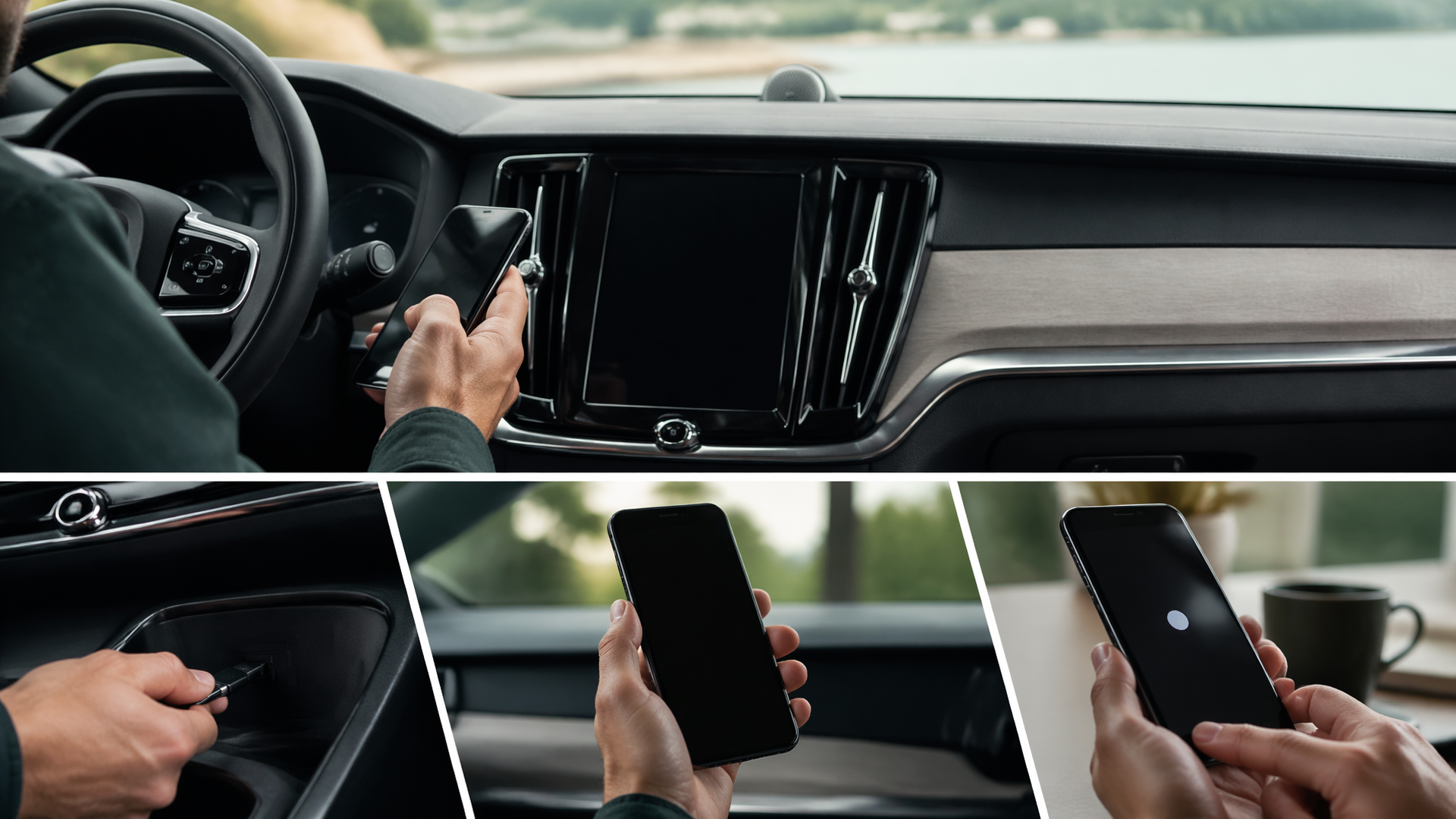
Why Apple CarPlay is not working in your Volvo and how to reset it
If Apple CarPlay has stopped working in your Volvo, the most common reasons are a simple software glitch, a loose connection, or outdated software on your iPhone or the car’s infotainment system. Before assuming a major issue, a quick restart of both your iPhone and the Volvo’s infotainment system often resolves the problem. This guide will walk you through the most likely causes and the steps to get CarPlay back up and running.
Initial Checks for Connectivity Issues
Before proceeding to resets, perform these quick checks. They are simple and can often pinpoint the problem without further steps.
- Verify Your iPhone: Ensure your iPhone is running the latest version of iOS. Outdated operating systems can cause compatibility problems. Also, confirm that CarPlay is enabled in your iPhone’s settings: go to Settings > Screen Time > Content & Privacy Restrictions > Allowed Apps and ensure CarPlay is toggled ON.
- Inspect the USB Cable: A damaged, worn, or non-certified USB cable is a frequent cause of CarPlay failure. Try using a different, high-quality Apple-certified USB cable. Ensure it’s securely plugged into both your iPhone and the Volvo’s designated USB port for CarPlay. If your Volvo has multiple USB ports, try a different one.
- Check Volvo Infotainment Settings: Navigate your Volvo’s infotainment system to Settings > Connectivity or Phone Settings. Confirm that CarPlay is enabled and that your iPhone is recognized. Some models may require you to “forget” a previously paired phone to establish a new, stable connection.
Restart Your iPhone
A simple restart of your iPhone can clear temporary software glitches that might be preventing CarPlay from connecting properly.
- For iPhones with Face ID: Press and hold the side button and either volume button until the “slide to power off” slider appears. Drag the slider, then wait for your iPhone to turn off. After it has completely shut down, press and hold the side button again until you see the Apple logo.
- For iPhones with a Home Button: Press and hold the top or side button until the “slide to power off” slider appears. Drag the slider, then wait for your iPhone to turn off. After it has completely shut down, press and hold the side button again until you see the Apple logo.
Once your iPhone has restarted, reconnect it to your Volvo’s USB port and check if CarPlay activates. If it still doesn’t work, proceed to the next step.
Reset Your Volvo’s Infotainment System
Resetting your Volvo’s infotainment system can clear out any software errors that may be interfering with CarPlay. The exact procedure can vary slightly by model year and trim, but generally involves a forced restart of the system.
For most Volvo models (e.g., XC40, XC60, XC90, S60, V60, S90, V90):
1. Locate the Home Button: On the center console touchscreen, find the physical “Home” button. This is often located below the screen itself.
2. Press and Hold: Press and hold this Home button for approximately 10 to 20 seconds.
3. Wait for Reboot: The screen should go black and then restart, typically displaying the Volvo logo. This process can take a few minutes to complete.
Once the infotainment system has fully rebooted, try reconnecting your iPhone and see if CarPlay is now functional.
Reset Network Settings on Your iPhone
Resetting your iPhone’s network settings can resolve underlying connectivity issues that might be blocking CarPlay. This action will erase all saved Wi-Fi passwords and Bluetooth pairings, so you will need to re-enter them after the reset.
1. On your iPhone, go to Settings.
2. Tap General.
3. Scroll down and tap Transfer or Reset iPhone.
4. Tap Reset.
5. Select Reset Network Settings.
6. Enter your iPhone passcode if prompted, and then confirm the reset.
After your iPhone restarts, reconnect it to your Volvo and check if CarPlay is working. If you still encounter issues, it’s time to consider software updates.
Update Your Software
Outdated software on either your iPhone or your Volvo’s infotainment system can cause compatibility issues.
- iPhone Software: Ensure your iPhone is running the latest version of iOS. Go to Settings > General > Software Update. If an update is available, download and install it.
- Volvo Infotainment Software: Check your Volvo’s settings for any available infotainment system updates. These are often delivered over-the-air or can be installed at a dealership. Consult your owner’s manual or the Volvo website for specific instructions relevant to your model year, as the process can vary.
When to Escalate to Professional Help
If you have diligently followed all the steps above—checked cables, restarted both devices, reset infotainment, reset network settings, and ensured software is up-to-date—and Apple CarPlay still isn’t working, the issue may be more complex. This could involve a faulty USB port in the car, a problem with the infotainment module itself, or a deeper software conflict that requires specialized tools.
- Consult Your Owner’s Manual: Refer to your Volvo’s owner’s manual for model-specific troubleshooting guidance or details on connected services.
- Contact Volvo Support or a Dealership: If the problem persists after these DIY steps, it’s recommended to contact your local Volvo dealership or Volvo customer support. They have the diagnostic equipment and expertise to identify and resolve more advanced issues. When you contact them, be prepared to clearly describe all the troubleshooting steps you have already performed.
Explore This Topic

Greedy Wheels is the founder and lead editor at Wheels Greed. With over 15 years of hands-on automotive experience — from rebuilding engines in a home garage to managing fleet maintenance for a regional logistics company — he brings real-world mechanical knowledge to every guide.
His work has been featured in automotive forums, owner communities, and dealership training materials. When he’s not researching the latest car owner questions, you’ll find him at a local track day, wrenching on his project car, or testing the newest OBD2 diagnostic tools.
At Wheels Greed, every article is reviewed against manufacturer service manuals, NHTSA bulletins, and verified owner reports. No AI-generated fluff. No guesswork. Just practical answers from someone who has turned the wrench.