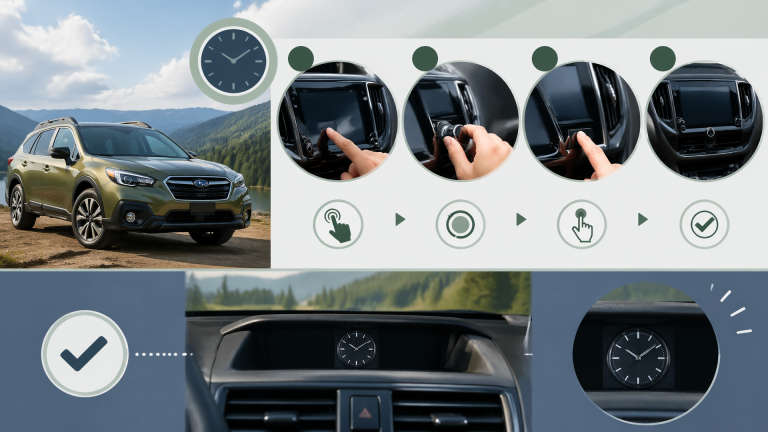
How to Set Up Your Buick Navigation System
If you’ve just gotten your new Buick, you might be eager to explore all its features, especially the Buick navigation system. Setting it up can make your driving experience smoother and more enjoyable. In this guide, you’ll learn how to connect your smartphone, access the navigation menu, and set your home address. You’ll also discover tips for finding points of interest and using voice commands. So, let’s dive in and get your navigation system ready for your next adventure!
Key Takeaways
Utilize the user-friendly touchscreen interface for real-time traffic updates and efficient routing.
Ensure Bluetooth is enabled on your smartphone for easy pairing and access to apps.
Regularly check for software updates to enhance functionality and prevent navigation errors.
Customize display settings for a personalized navigation experience and save changes to apply them.
Understanding Your Buick Navigation System
Your Buick navigation system offers a user-friendly interface that makes it easy to find your way. You’ll notice that the touchscreen display is intuitive and responsive. With just a few taps, you can enter your destination. The system provides real-time traffic updates to help you avoid delays. You can also save favorite locations for quick access later. If you need assistance, the voice command feature is always ready to help. You’re in control of your journey, making navigation a breeze.
Connecting Your Smartphone
Connecting your smartphone to the Buick navigation system will enhance your driving experience by allowing easy access to apps and directions. You’ll first need to ensure your smartphone’s Bluetooth is enabled. Then, navigate to the settings on your Buick’s touchscreen to initiate the pairing process. Once you’ve selected your phone, you’ll receive a prompt to confirm the connection. After pairing, your favorite apps will be just a tap away on the display. You can easily play music, make calls, or get real-time traffic updates. Now that you’re connected, let’s dive into accessing the navigation menu for seamless directions.
Accessing the Navigation Menu
Now that you’ve connected your smartphone, you can easily access the navigation menu. It’s time to explore the main features that’ll help you set up your Buick navigation system. Let’s dive into the key points to get you started.
Finding the Main Menu
Finding the main menu in your Buick navigation system is straightforward and essential for accessing all the features you need. You’ll want to start by tapping the “Home” button on your dashboard. Once you’re in the home screen, look for the “Navigation” option. Tapping on that will take you directly to the navigation menu. From there, you can easily explore routes, points of interest, and other navigation settings.
Selecting Navigation Options
Selecting navigation options allows you to customize your route and preferences for a smoother driving experience. You can choose between the fastest route, the shortest distance, or scenic drives. Additionally, you can set preferences for toll roads and avoid highways if you prefer. Adjusting voice guidance settings ensures you get clear directions while driving. Finally, don’t forget to save your favorite locations for quick access later.
Customizing Your Preferences
Customizing your preferences allows you to tailor the navigation system to fit your specific needs and preferences. You can adjust settings like voice guidance and map display to suit your style. It’s also possible to save frequently visited locations for quicker access. Don’t forget to set your preferred routes to avoid traffic or tolls. Once you’ve made these changes, your navigation experience will be much more enjoyable.
Using Voice Commands
Using voice commands makes it easier for you to navigate and control your Buick’s features hands-free. You can simply say “Take me home” to set your destination quickly. If you need directions to a specific place, just mention the name of the location. You’ll also find it convenient to request nearby gas stations or restaurants. With voice commands, you can keep your focus on the road while accessing all the features you need.
Setting Your Home Address
Your home address can be easily set in the Buick navigation system to ensure quick access whenever you need directions. First, you’ll want to start your vehicle and access the navigation menu. Next, look for the option labeled “Set Home” or “Home Address.” Once you select that option, you’ll be prompted to enter your address details. After entering your information, confirm it to save the address. Now, you can quickly navigate home with just a single tap. Remember, you can update your home address anytime if needed.
Finding Points of Interest
Points of interest can be easily accessed through the navigation system’s menu. You’ll find categories like restaurants, gas stations, and hotels right at your fingertips. You can search for specific types of places or browse through the list to discover new spots. Once you’ve selected a point of interest, the system will provide directions and estimated travel time. You can also save your favorite locations for quick access later. If you’re on the go, finding points of interest can enhance your driving experience. Next, let’s explore how to use voice commands to make this process even simpler.
Using Voice Commands
Using voice commands can make navigating your Buick much simpler and more intuitive. You’ll find that once you get the hang of it, you can easily access features without taking your eyes off the road. Let’s dive into some key points to help you master voice commands.
Voice Command Basics
Voice command basics can enhance how you interact with your vehicle’s features effortlessly. You’ll be able to control navigation, music, and calls simply by speaking. It helps keep your focus on the road while accessing important functions. Plus, the system often learns from your preferences over time, making it even more user-friendly. Now, let’s explore some common voice commands you can use to get started.
Common Voice Commands
Common voice commands can significantly enhance how you interact with your Buick’s features and functions. You can say, “Navigate to [destination]” to get directions instantly. If you want to call someone, just say, “Call [contact name].” To change the radio station, you might use, “Play [station name or genre].” You’ll quickly discover how these commands can streamline your driving experience.
Tips for Effective Use
Effective use of voice commands can significantly enhance your driving experience by allowing you to stay focused on the road. You should always speak clearly and at a moderate pace to ensure the system understands you. Make sure to familiarize yourself with the specific commands for your Buick to maximize efficiency. It’s helpful to practice using voice commands in a safe environment before relying on them while driving. Lastly, don’t hesitate to repeat commands if the system doesn’t respond as expected.
Updating Your Maps
Updating your maps is essential for ensuring you have the latest routes and information while driving your Buick. You’ll want to check for updates regularly to avoid outdated information. To start, connect your Buick to Wi-Fi or use a USB drive with the latest map files. Once connected, access the navigation system settings from your dashboard. Follow the prompts to initiate the update process, and be patient as the system downloads the new data. After the update is complete, confirm that the new maps are installed properly. Keeping your maps current helps you navigate efficiently and avoid potential detours.
Troubleshooting Common Issues
Sometimes, you’re going to encounter issues with your Buick navigation system that need troubleshooting. If your maps aren’t loading, try restarting your vehicle’s infotainment system. You may also want to check if your system’s software is up to date. If the GPS signal seems weak, make sure you’re in an open area and not surrounded by tall buildings. Sometimes, disconnecting and reconnecting your device can resolve connectivity issues. If voice commands aren’t working, ensure the microphone isn’t obstructed and is functioning properly. Lastly, refer to the owner’s manual for specific error codes that may appear on your screen.
Frequently Asked Questions
What should i do if my buick navigation system is not responding at all?
If your Buick navigation system isn’t responding at all, there are a few steps you can take to troubleshoot the issue. First, try restarting your vehicle, as this can sometimes reset the system and resolve minor glitches. If that doesn’t work, check if the system’s software needs an update, as outdated software can lead to functionality problems. You should also inspect the connections and fuses related to the navigation system to ensure everything is secure and functioning properly. If you’re still having trouble, consulting your owner’s manual might provide specific guidance for your model. If all else fails, it’s best to contact your dealership or a qualified technician for further assistance.
Can i customize the display settings on my buick navigation system?
Yes, you can customize the display settings on your Buick navigation system. You’ll usually find options for adjusting brightness, contrast, and even the color scheme within the settings menu. If you want a more personalized look, you might also be able to change the map views or select different route display options. Just navigate through the settings until you see the display preferences. Once you make your changes, don’t forget to save them. It’s all about making the system work best for you while you’re on the road!
Is there a way to reset the navigation system to its factory settings?
Yes, there’s definitely a way to reset your navigation system to its factory settings. You’ll usually find this option in the system’s settings menu. Just look for something like “Reset” or “Restore Factory Settings.” Once you tap that option, it’ll prompt you to confirm your choice, and you can go ahead and proceed. Remember, resetting will erase any saved locations and preferences, so it might be a good idea to jot those down first. After the reset, your navigation system should be back to how it was when you first got it.
If you’re considering upgrading your Audi Q7 and are curious about the benefits of captain’s chairs, I highly recommend visiting this informative article on the topic. It provides valuable insights into whether captain’s chairs are worth the investment for your vehicle. Check it out here: Are Captain’s Chairs Worth It in Audi Q7?
Earnings Disclaimer:
Some links on this page are affiliate links, meaning we may earn a commission if you make a purchase through them—at no extra cost to you. This helps support our independent research and content creation.

Greedy Wheels is the founder and lead editor at Wheels Greed. With over 15 years of hands-on automotive experience — from rebuilding engines in a home garage to managing fleet maintenance for a regional logistics company — he brings real-world mechanical knowledge to every guide.
His work has been featured in automotive forums, owner communities, and dealership training materials. When he’s not researching the latest car owner questions, you’ll find him at a local track day, wrenching on his project car, or testing the newest OBD2 diagnostic tools.
At Wheels Greed, every article is reviewed against manufacturer service manuals, NHTSA bulletins, and verified owner reports. No AI-generated fluff. No guesswork. Just practical answers from someone who has turned the wrench.