How to Change Subaru Forester Tire Pressure from KPA to PSI
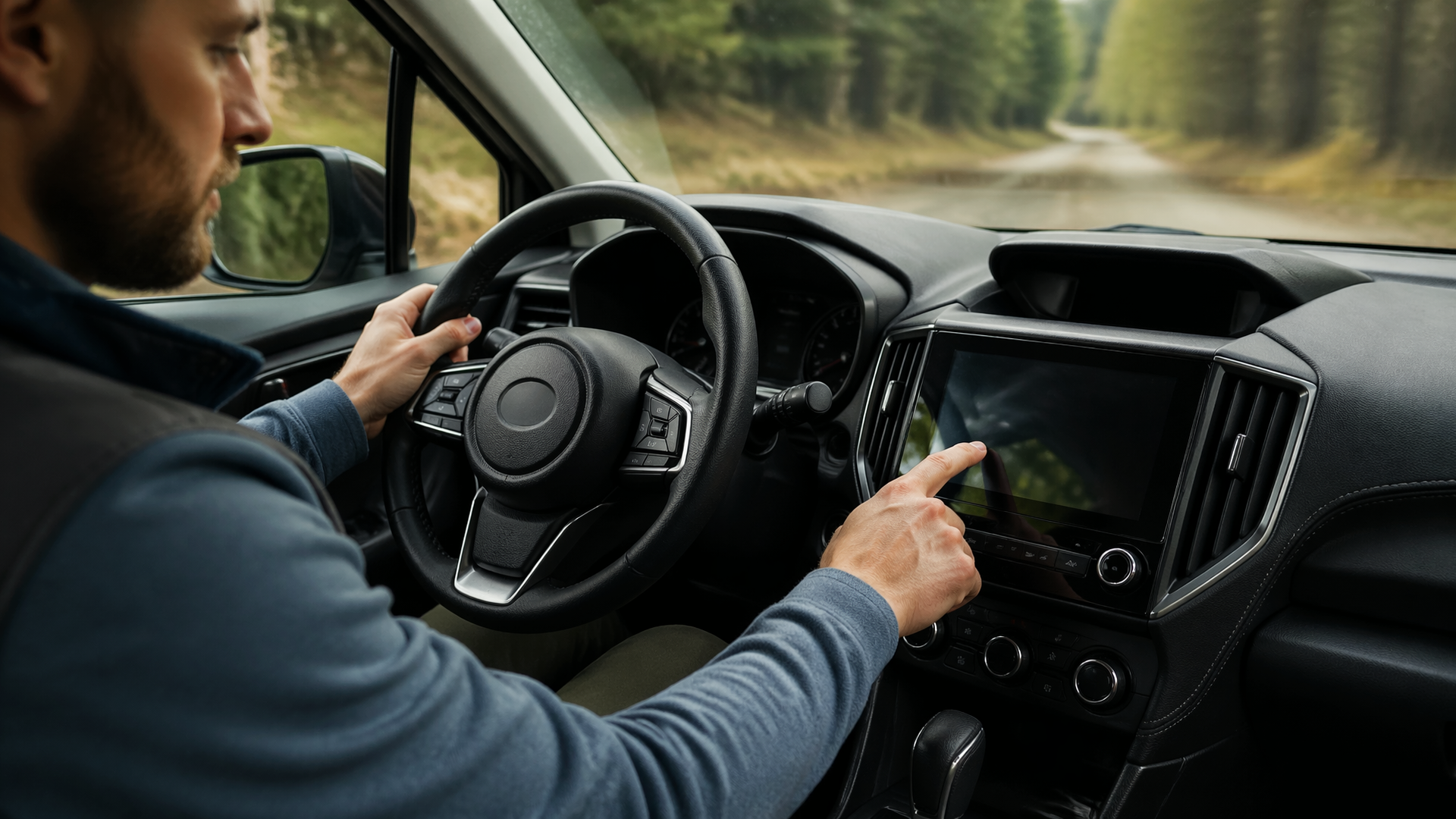
If you need to change your Subaru Forester’s tire pressure display from kilopascals (kPa) to pounds per square inch (PSI), the process involves adjusting a setting within your vehicle’s infotainment or multi-function display system. This is a straightforward adjustment you can make yourself to ensure you’re reading your tire pressure in your preferred unit.
Before You Start: Accessing Your Forester’s Settings
To begin, ensure your vehicle is in Park and the engine is running or the ignition is in the “ON” position. You will be interacting with the vehicle’s dashboard display or infotainment screen, so familiarity with its basic controls is helpful. You do not need any special tools for this adjustment.
Navigating to the Tire Pressure Unit Setting
The exact menu path can vary slightly depending on your Forester’s specific trim and infotainment system version, but the general steps are consistent:
1. Access the Main Menu: Use your steering wheel controls or the infotainment touchscreen to bring up the main menu or settings screen.
2. Select “Settings” or “Setup”: Look for an icon or menu option labeled “Settings,” “Setup,” or a gear icon.
3. Find “Vehicle” or “Car” Settings: Within the main settings, navigate to a section often called “Vehicle,” “Car,” or “System.” This is where general vehicle configurations are managed.
4. Locate “Units” or “Display”: Inside the vehicle settings, search for an option related to “Units,” “Display,” “Measurement,” or “TPMS Settings.”
5. Choose Tire Pressure Units: You should find a specific setting for “Tire Pressure Units” or “TPMS Units.” Select this option.
6. Select PSI: From the available options (typically kPa, PSI, and sometimes Bar), choose “PSI.”
7. Confirm the Change: The system will likely ask you to confirm your selection. Press “OK,” “Save,” or “Confirm” to finalize the change.
Confirming the Unit Change
Once you have confirmed the setting, exit the settings menus. Return to your normal driving view or the tire pressure monitoring screen. The tire pressure readings should now be displayed in PSI. For instance, a previous reading of 240 kPa should now appear as approximately 35 PSI. Check several tires to ensure the change has been applied universally across the system.
Common Pitfalls to Avoid
- Getting Lost in Menus: The infotainment system can have many layers. Ensure you are in the “Vehicle” or “System” settings, not general audio, navigation, or connectivity menus, which might have similar-sounding options.
- Confusing Unit Types: Be certain you are changing the tire pressure unit specifically. Your vehicle’s system may have separate settings for distance (miles/km), temperature (°F/°C), or fuel economy, which are often grouped together.
- Delayed Display Update: Occasionally, the system may take a moment to refresh the display after a setting change. If PSI doesn’t appear immediately, try turning the vehicle off, waiting a few seconds, and then turning it back on.
If the Display Remains in kPa
If, after following these steps, your Subaru Forester’s tire pressure display still shows kPa, retrace your steps carefully. Double-check that you selected “PSI” and that you confirmed the change. It’s possible a confirmation step was missed or the wrong unit was inadvertently selected. If you continue to have trouble, consult your owner’s manual. It provides detailed, model-specific instructions and diagrams that can clarify the exact menu navigation for your year and trim.
When to Seek Professional Help
If you have reviewed your owner’s manual and are still unable to change the tire pressure units, or if the infotainment system behaves erratically, it may indicate a software glitch or a more complex issue. In such cases, it is best to contact your local Subaru dealership or a qualified automotive technician. They have the diagnostic tools and expertise to resolve persistent display problems or system malfunctions.
Explore This Topic
- Changing Kpa To Psi On A 2019 Subaru Outback Tire Pressure Display
- Subaru Crosstrek Tire Pressure Recommended Psi
- How To Reset Subaru Tire Pressure Light

Greedy Wheels is the founder and lead editor at Wheels Greed. With over 15 years of hands-on automotive experience — from rebuilding engines in a home garage to managing fleet maintenance for a regional logistics company — he brings real-world mechanical knowledge to every guide.
His work has been featured in automotive forums, owner communities, and dealership training materials. When he’s not researching the latest car owner questions, you’ll find him at a local track day, wrenching on his project car, or testing the newest OBD2 diagnostic tools.
At Wheels Greed, every article is reviewed against manufacturer service manuals, NHTSA bulletins, and verified owner reports. No AI-generated fluff. No guesswork. Just practical answers from someone who has turned the wrench.