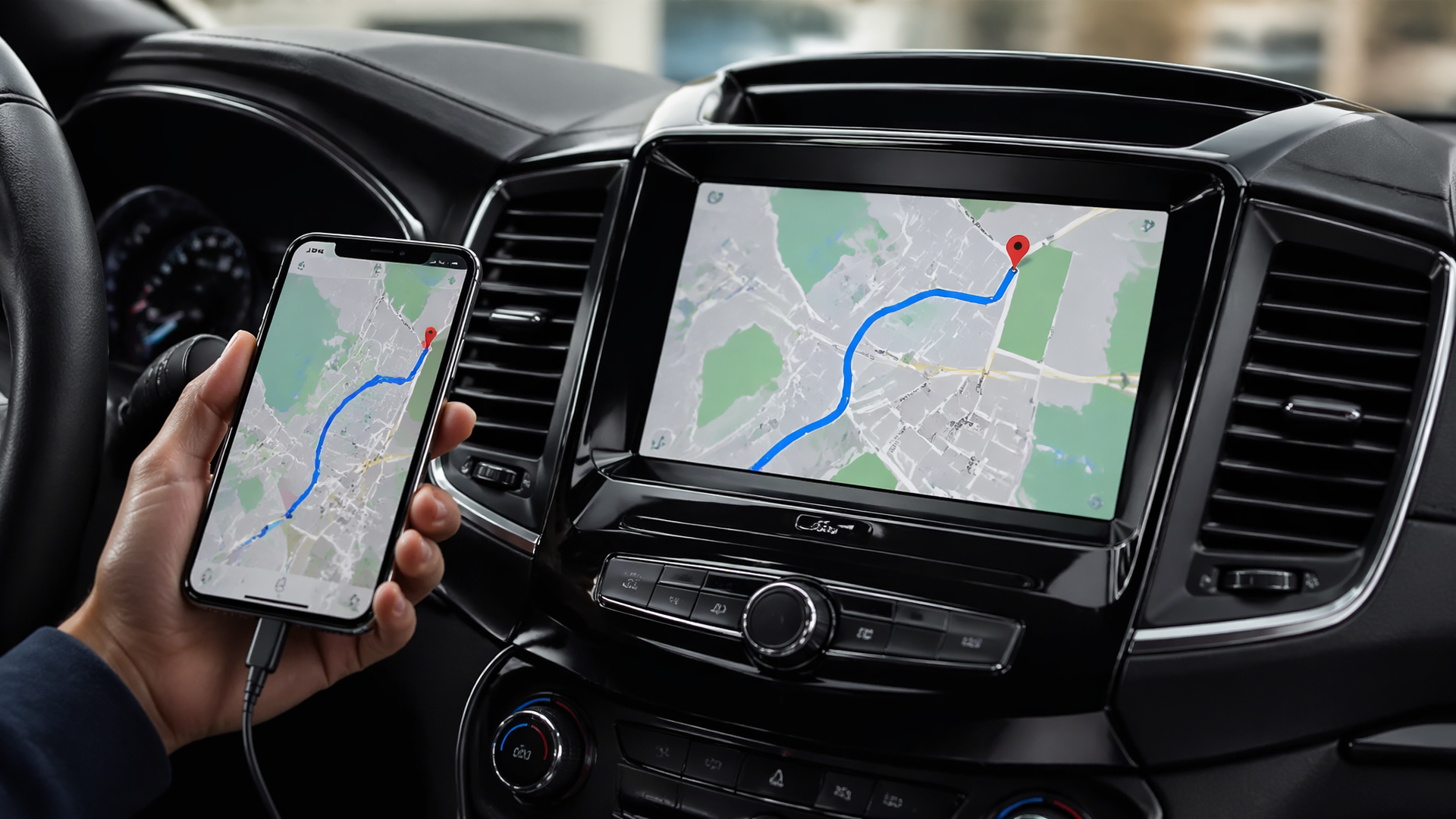
How to Display Google Maps on Ford Sync
To display Google Maps on your Ford Sync 3 system, you will need to connect your compatible smartphone using Apple CarPlay or Android Auto. Once your phone is linked and the appropriate mirroring service is active on the Sync screen, you can then launch the Google Maps application from your phone’s interface displayed on the car’s infotainment. This process relies on a functional USB connection and up-to-date software on both your phone and your vehicle.
Step-by-Step Connection for Google Maps
The most direct method to use Google Maps on your Ford Sync 3 display involves mirroring your smartphone through either Apple CarPlay or Android Auto.
1. Connect Your Smartphone: Plug your compatible iPhone or Android device into one of the USB ports in your Ford vehicle. It is important to use a high-quality USB cable that supports data transfer, as a poor connection can prevent the system from recognizing your phone.
2. Enable CarPlay/Android Auto: Your Sync 3 system should automatically detect the connected phone and prompt you to enable Apple CarPlay or Android Auto. Follow any on-screen instructions. If it doesn’t prompt automatically, you may need to manually select the option from the Sync menu.
3. Launch Google Maps: Once Apple CarPlay or Android Auto is active on your Sync screen, you will see icons for supported applications. Find and select the Google Maps icon. If Google Maps is not immediately visible, confirm that it is installed and recently updated on your smartphone, as this is a common prerequisite.
4. Navigate: With Google Maps open on your car’s display, you can now use its features, including searching for destinations, viewing traffic conditions, and receiving turn-by-turn directions, all controlled via the Sync touchscreen or voice commands.
How to Check It Worked
After completing the connection steps, you can confirm that Google Maps is functioning correctly on your Ford Sync 3 by observing a few key indicators on the infotainment screen.
- Google Maps Interface Visibility: The primary Google Maps interface, featuring the familiar map view, a search bar for destinations, and navigation controls, should be clearly presented on your Sync 3 display.
- Interactive Functionality: Test the responsiveness by attempting a simple action, such as searching for a nearby point of interest or initiating a brief test navigation. The app should react promptly to your inputs and display accurate route information.
- Voice Command Confirmation: Verify voice command integration by saying “Hey Google” (for Android Auto) or “Hey Siri” (for CarPlay) and asking the system to navigate to a specific address. The system should acknowledge your request and begin guiding you.
If Google Maps Does Not Appear
If Google Maps fails to display on your Ford Sync 3, several common issues might be preventing the connection. These typically involve phone permissions, the integrity of the USB connection, or the compatibility of your vehicle’s SYNC software.
- Phone Permissions and Settings: Ensure that your smartphone has granted the necessary permissions for Google Maps to operate within Apple CarPlay or Android Auto. On an iPhone, navigate to Settings > General > CarPlay, select your vehicle, and confirm that Google Maps is enabled. For Android devices, go to Settings > Connected devices > Android Auto and review app permissions to ensure Google Maps is allowed.
- USB Cable and Port Issues: A damaged or low-quality USB cable, or a malfunctioning USB port in your vehicle, can interrupt the data stream required for mirroring. Try using a different, certified USB cable designed for data transfer, and if your vehicle has multiple USB ports, test an alternative one.
- SYNC 3 Software Updates: Older versions of Ford’s SYNC 3 software may not fully support the latest iterations of Apple CarPlay or Android Auto, which can prevent app functionality. Visit the Ford owner website or consult your local dealership to check if any SYNC system software updates are available for your specific vehicle.
- App and System Updates: Confirm that both the Google Maps application on your phone and the underlying Android Auto or Apple CarPlay application are updated to their most recent versions through your smartphone’s app store.
Troubleshooting and Compatibility
Ford SYNC 3 systems are engineered to integrate with smartphones via Apple CarPlay and Android Auto, serving as the primary conduits for third-party applications like Google Maps. Generally, Ford vehicles equipped with SYNC 3, typically model years 2016 and newer, offer support for these features. However, specific vehicle trim levels or optional feature packages could influence availability. It is also essential that your smartphone’s operating system is kept up-to-date, as older OS versions may not be compatible with the latest mirroring standards. If you continue to experience persistent problems, referring to your Ford owner’s manual or contacting Ford customer support can provide vehicle-specific troubleshooting guidance.
Explore This Topic

Greedy Wheels is the founder and lead editor at Wheels Greed. With over 15 years of hands-on automotive experience — from rebuilding engines in a home garage to managing fleet maintenance for a regional logistics company — he brings real-world mechanical knowledge to every guide.
His work has been featured in automotive forums, owner communities, and dealership training materials. When he’s not researching the latest car owner questions, you’ll find him at a local track day, wrenching on his project car, or testing the newest OBD2 diagnostic tools.
At Wheels Greed, every article is reviewed against manufacturer service manuals, NHTSA bulletins, and verified owner reports. No AI-generated fluff. No guesswork. Just practical answers from someone who has turned the wrench.