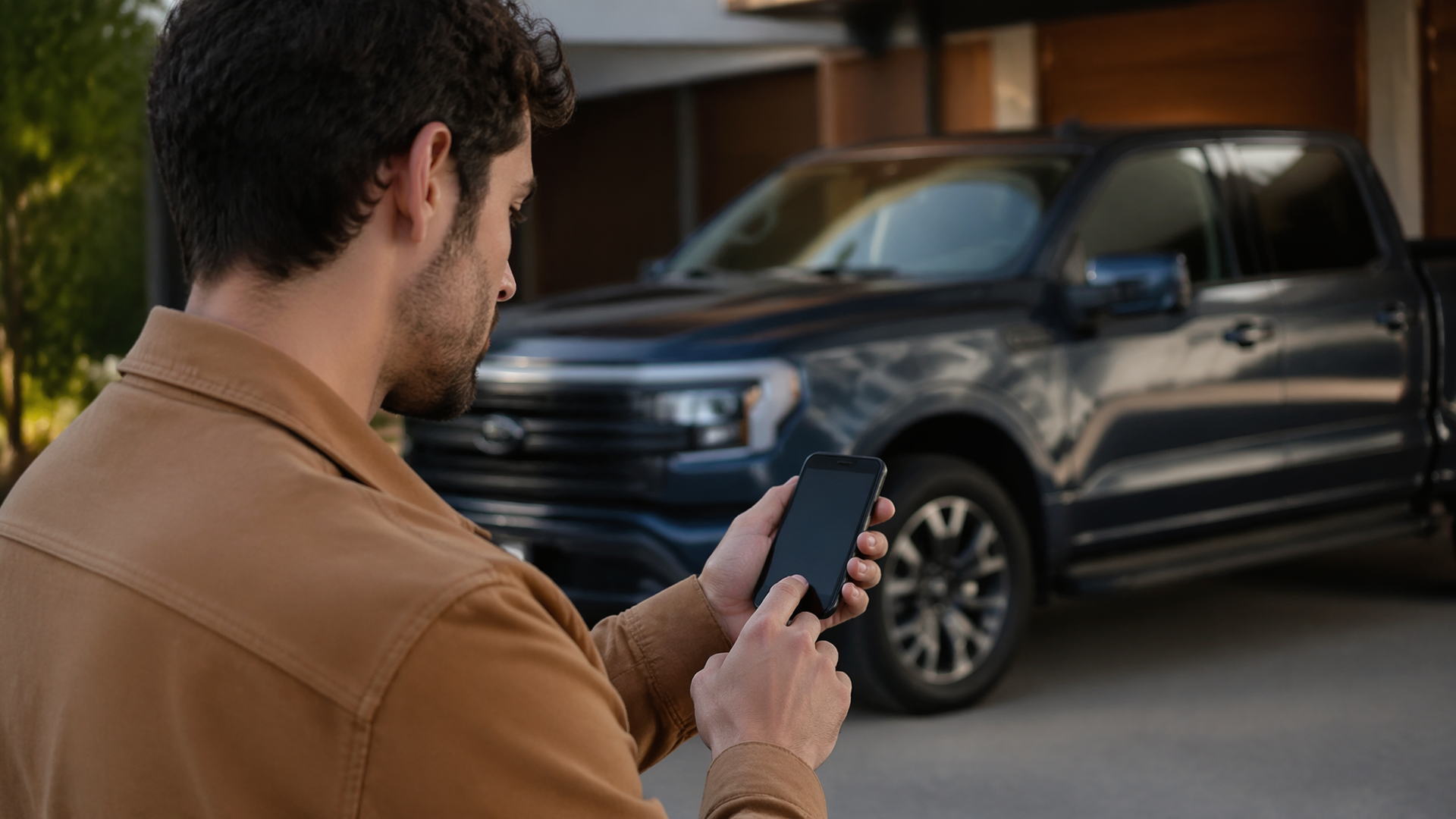
How to stop Ford app location sharing without disabling all connected features
You can stop the FordPass app from sharing your vehicle’s location without turning off all its connected features by adjusting the privacy settings within the app itself. This allows you to maintain functionality like remote start or vehicle health monitoring while preventing the constant tracking of your car’s whereabouts. The exact steps can vary slightly depending on your app version and vehicle model year, but the general process involves navigating to the privacy or location services section of the FordPass app.
Adjusting Location Sharing in the FordPass App
To manage your vehicle’s location sharing, you’ll need to access the settings within the FordPass mobile application. It’s important to note that some features, like locating your parked vehicle, rely on this location data. Disabling location sharing will impact these specific functionalities.
1. Open the FordPass App: Launch the FordPass app on your smartphone.
2. Navigate to Vehicle Settings: Tap on the “Vehicle” icon, usually found at the bottom of the screen.
3. Find Privacy or Location Settings: Look for an option related to “Privacy,” “Location Services,” or “Connected Services.” This might be under a general “Settings” menu within the vehicle section.
4. Manage Location Sharing: Within this section, you should find a toggle or option to control location sharing. You may have granular control to disable general location tracking while keeping other connected services active. Select the option that best suits your privacy preferences.
5. Confirm Changes: After making your selection, the app will likely prompt you to confirm the changes. Ensure you save your preferences.
Understanding What Location Sharing Affects
When you disable location sharing through the FordPass app, certain features that depend on real-time GPS data will be affected. These typically include:
- Vehicle Location: The ability to see your vehicle’s current location on a map within the app will be disabled. This is a primary function for finding your car in a large parking lot.
- Last Parked Location: Features that automatically record and display the last known location where your vehicle was parked will no longer function.
- Certain Remote Features: While less common, some advanced remote features that might use location data for geofencing or route planning could also be impacted.
Features that generally do not rely on constant GPS tracking, such as remote start, remote lock/unlock, and vehicle health alerts (like fuel level or tire pressure), should continue to operate as normal, provided they are enabled separately.
Verifying Location Sharing Has Stopped
After adjusting the settings, it’s a good practice to verify that location sharing has indeed been disabled and that the features you wish to retain are still functional.
1. Check the App Map: Go back to the vehicle location screen in the FordPass app. If location sharing is off, it should indicate that the location is unavailable or show the last known location from before the change, rather than a live, updating map.
2. Test a Connected Feature: Attempt to use a feature that you want to keep, such as remote start or lock/unlock. If these functions work as expected, your changes have likely been successful in isolating location sharing.
3. Review App Permissions: On your smartphone’s operating system settings, check the app permissions for FordPass. Ensure that “Location” is set to “Never” or “While Using the App” with the specific sharing toggles within FordPass turned off.
Potential Limitations and What to Expect
It’s important to understand that the exact granular control over location sharing can depend on your specific Ford model year and the features equipped. Some older models or specific trim levels might not offer the ability to disable location sharing independently from other connected services, potentially leading to a trade-off where you must disable all location-dependent features if you wish to stop general tracking. If you find that the option to selectively disable location sharing is missing or greyed out, your vehicle’s software or subscription level may not support this fine-tuned control.
When to Seek Further Assistance
If you have followed these steps and are still experiencing issues with location sharing, or if you are unable to find the relevant settings within your FordPass app, it is recommended to consult your vehicle’s owner’s manual for model-specific guidance. You can also contact FordPass support directly through the app or by visiting the Ford website for further assistance. In some instances, a software update for the app or your vehicle’s infotainment system may be required to access or properly utilize these privacy controls.

Greedy Wheels is the founder and lead editor at Wheels Greed. With over 15 years of hands-on automotive experience — from rebuilding engines in a home garage to managing fleet maintenance for a regional logistics company — he brings real-world mechanical knowledge to every guide.
His work has been featured in automotive forums, owner communities, and dealership training materials. When he’s not researching the latest car owner questions, you’ll find him at a local track day, wrenching on his project car, or testing the newest OBD2 diagnostic tools.
At Wheels Greed, every article is reviewed against manufacturer service manuals, NHTSA bulletins, and verified owner reports. No AI-generated fluff. No guesswork. Just practical answers from someone who has turned the wrench.