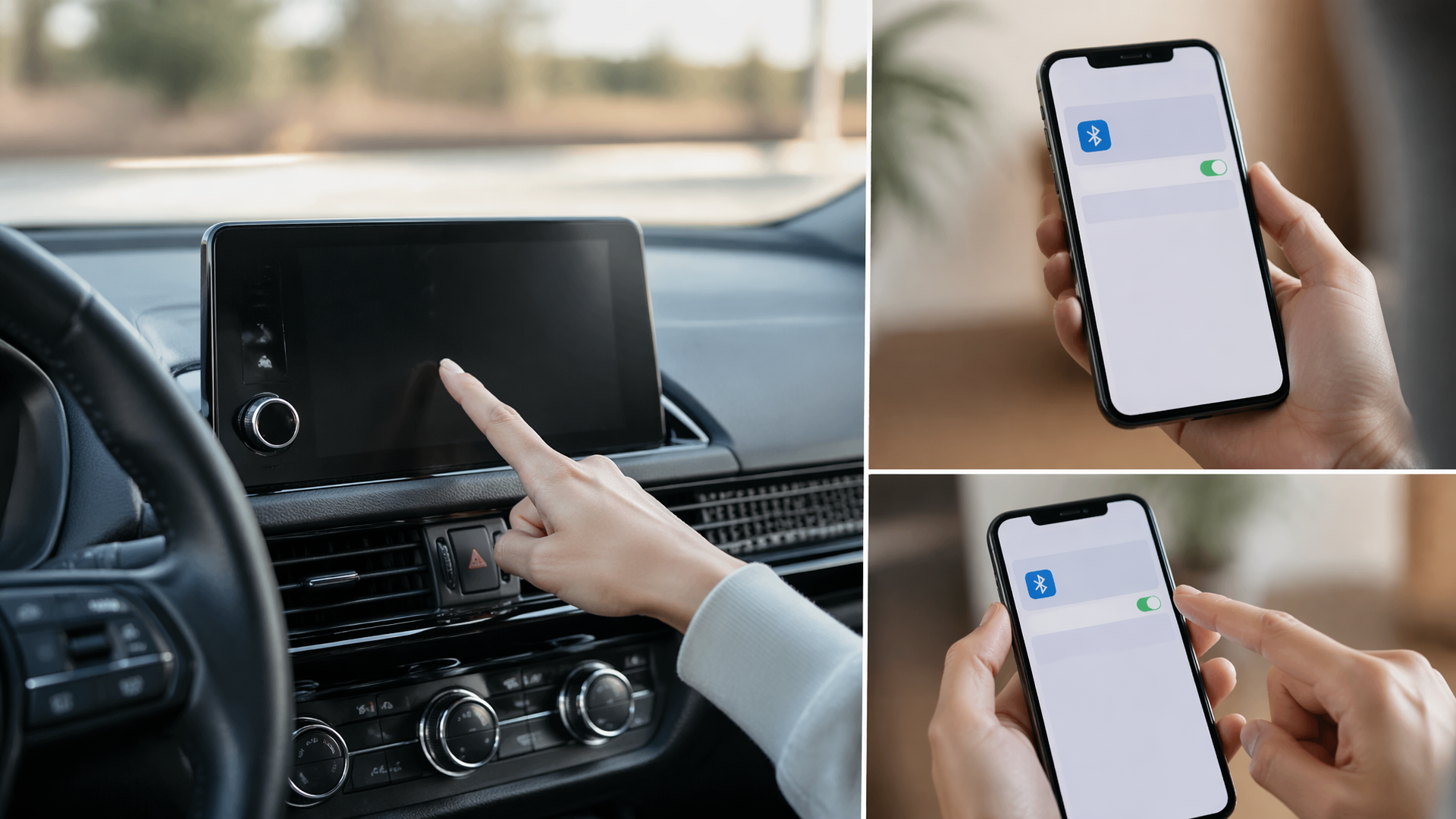
How to reset Honda infotainment or Bluetooth when phone pairing fails
If your Honda’s infotainment system or Bluetooth is failing to pair with your phone, the most direct solution is to perform a system reboot and then reset your phone’s Bluetooth connection. This common troubleshooting sequence can resolve temporary software conflicts that prevent successful pairing. By following these steps, you can attempt to get your phone connected again.
Reboot Your Honda Infotainment System
A straightforward reboot of your vehicle’s infotainment system can often clear minor software glitches that are hindering Bluetooth connectivity.
For this job, you may need:
- Auto trim removal tool setCheck price on AmazonWe may earn a commission
- Bolt extractor kitCheck price on AmazonWe may earn a commission
Affiliate disclosure: We may earn a commission from qualifying purchases.
1. Ensure your Honda is completely powered off. Turn the ignition off, and confirm that all dashboard lights and the infotainment screen are dark.
2. Open and then close the driver’s side door. This action helps to ensure that all vehicle modules, including the infotainment system, have fully powered down.
3. Wait for a minimum of 10 minutes. This extended pause allows the infotainment system’s internal memory to fully discharge and reset.
4. Restart your Honda’s engine. The infotainment system will then perform a fresh boot-up sequence.
Reset Your Phone’s Bluetooth
After the vehicle’s system has been rebooted, it’s crucial to also reset the Bluetooth function on your smartphone.
1. Navigate to your smartphone’s Bluetooth settings.
2. Toggle the Bluetooth switch to the “Off” position.
3. Allow at least 30 seconds for your phone’s Bluetooth radio to power down completely.
4. Toggle the Bluetooth switch back to the “On” position.
Re-pair Your Phone to Your Honda
With both your Honda’s infotainment system and your phone’s Bluetooth now reset, you can proceed to re-establish the connection.
1. On your Honda’s infotainment screen, access the Bluetooth or Phone settings menu. The exact location may vary depending on your vehicle’s model year and trim.
2. Initiate the pairing process by selecting an option like “Add Device,” “Pair Phone,” or “Search for Devices.”
3. On your smartphone, scan for available Bluetooth devices.
4. Select your Honda from the list of discovered devices on your phone’s screen.
5. Follow the prompts on both your phone and the infotainment system. This typically involves confirming a pairing code or PIN displayed on both devices.
6. Grant necessary permissions for contacts, call history, or message access when prompted by your phone to enable full functionality.
Confirm a Successful Connection
Once the re-pairing attempt is complete, verify that your phone is now properly connected and functioning as expected.
- Check the infotainment display: It should clearly indicate that your phone is connected via Bluetooth.
- Test a phone call: Use the infotainment system’s controls to make a call to a contact or dial a number.
- Stream audio: Play music or a podcast from your phone and confirm that the sound is coming through the car’s speakers.
- Verify notifications: If your system supports it, check that text messages or other alerts from your phone are appearing on the infotainment screen.
If the connection is unstable or pairing fails again, the issue might stem from your phone’s operating system, a specific Bluetooth profile incompatibility, or a more complex problem within the vehicle’s infotainment module.
Applicability and Model Variations
It’s important to note that the exact steps and menu options for resetting and pairing can vary significantly between different Honda model years and infotainment system software versions. For instance, older models might require a physical button press combination for a system reset, while newer ones may offer a software-based reboot option. Always refer to your vehicle’s owner’s manual for the most precise instructions applicable to your specific Honda.
When to Seek Professional Assistance
If you have diligently followed all the reset and re-pairing procedures and your phone still refuses to connect, it is advisable to explore further diagnostic steps or seek professional help.
- Test with another phone: Attempt to pair a different, compatible smartphone to your Honda. If another phone connects successfully, the problem is likely with your original device.
- Check for system updates: Ensure your Honda’s infotainment system is running the latest available software. Information on how to check for and install these updates can be found in your owner’s manual or by contacting a Honda dealership.
- Consult your owner’s manual: Your vehicle’s manual may contain specific troubleshooting tips or alternative reset procedures tailored to your model.
- Visit a Honda Dealership: If the issue persists after these steps, it could indicate a hardware defect with the vehicle’s Bluetooth module or infotainment system. A certified Honda technician will have the necessary tools and expertise to diagnose and repair such problems.
Explore This Topic

Greedy Wheels is the founder and lead editor at Wheels Greed. With over 15 years of hands-on automotive experience — from rebuilding engines in a home garage to managing fleet maintenance for a regional logistics company — he brings real-world mechanical knowledge to every guide.
His work has been featured in automotive forums, owner communities, and dealership training materials. When he’s not researching the latest car owner questions, you’ll find him at a local track day, wrenching on his project car, or testing the newest OBD2 diagnostic tools.
At Wheels Greed, every article is reviewed against manufacturer service manuals, NHTSA bulletins, and verified owner reports. No AI-generated fluff. No guesswork. Just practical answers from someone who has turned the wrench.