Pairing your iphone to a lexus: a bluetooth guide
Connecting your iPhone to your 2014 Lexus F Sport using Bluetooth is essential for hands-free calls and audio streaming. This guide provides the exact steps to establish this connection, along with troubleshooting tips if you encounter issues.
Prepare for Pairing: Enable Bluetooth
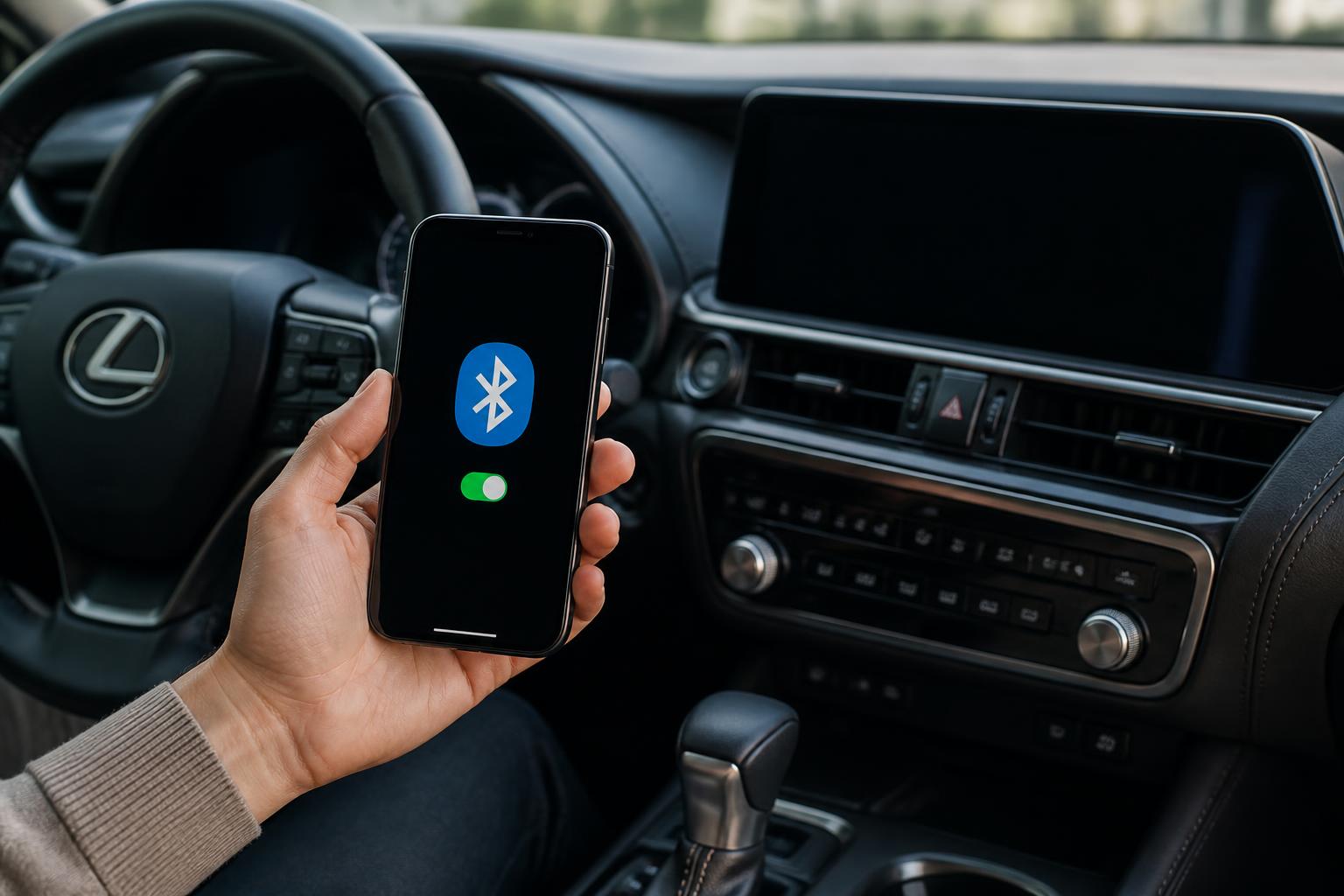
Before you begin the pairing process, ensure that Bluetooth is activated on both your iPhone and your 2014 Lexus F Sport. On your iPhone, navigate to Settings > Bluetooth and verify that the toggle switch is in the ON position (green). In your Lexus, access the infotainment system by pressing the SETUP button on the dashboard, then select Bluetooth and ensure the system is set to ON. If your Lexus is already paired with another phone, you may need to delete the old device from the car’s system to make room for the new connection.
Step-by-Step iPhone to Lexus Pairing
Follow these precise steps to successfully pair your iPhone with your 2014 Lexus F Sport:
1. Initiate Pairing on Your Lexus: On the Lexus infotainment screen, press the SETUP button, then select Bluetooth. Choose Add New Device or a similar option. The system will prompt you to search for your phone.
2. Scan for Devices on Your iPhone: On your iPhone, go to Settings > Bluetooth. Your phone will automatically begin searching for available Bluetooth devices in its vicinity.
3. Select Your Lexus on iPhone: Your Lexus should appear in the list of available devices on your iPhone, typically labeled as “My Lexus” or the specific model name. Tap on your Lexus to begin the pairing sequence.
4. Confirm the Pairing Code: A six-digit numeric code will be displayed on both your iPhone screen and the Lexus infotainment screen. Carefully verify that these codes are identical.
5. Approve the Connection: On both your iPhone and the Lexus screen, confirm that you wish to pair the devices. You will likely be prompted to allow your Lexus to access your iPhone’s contacts and call history. Granting these permissions is necessary for full hands-free calling and contact list functionality.

Confirming a Successful Connection
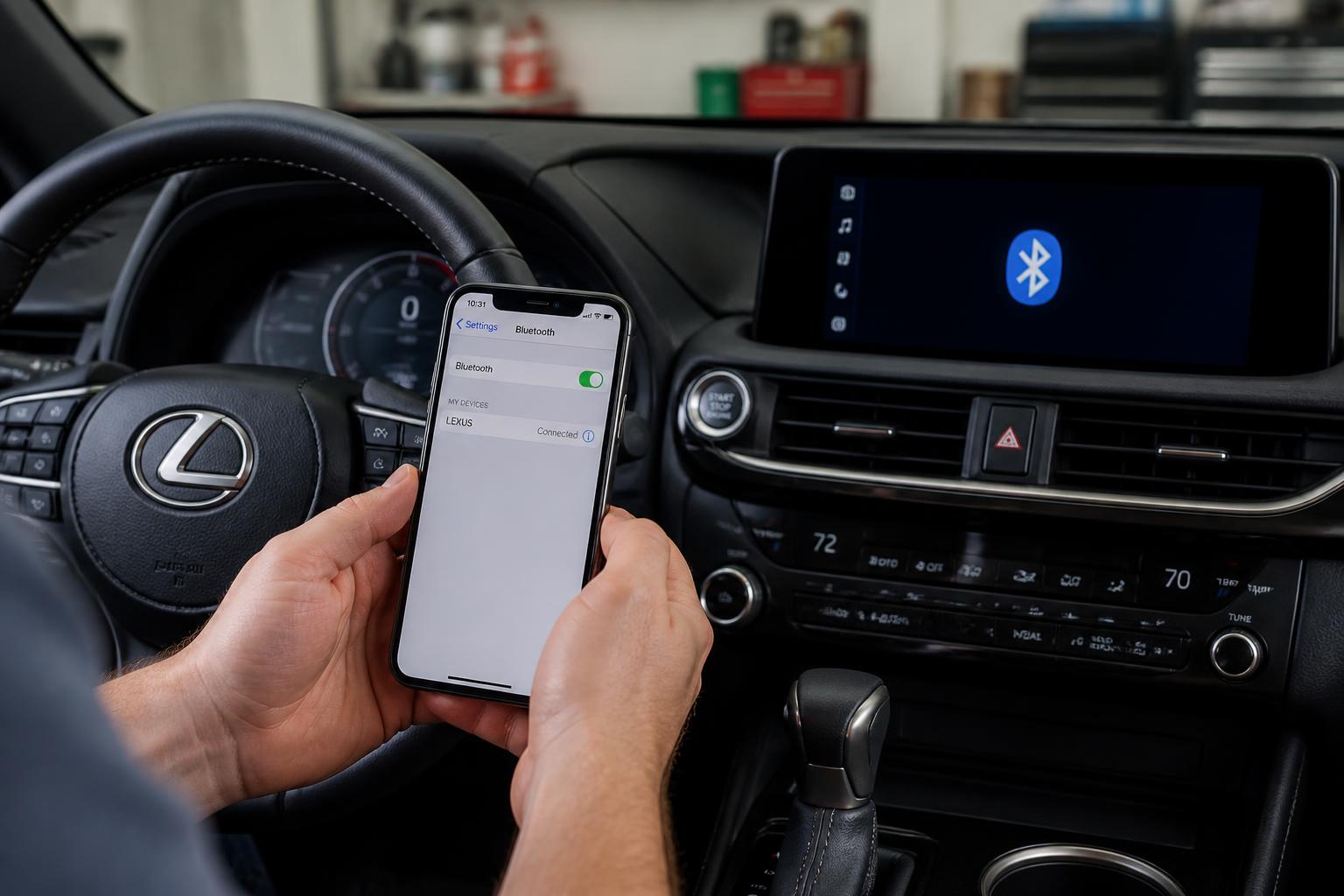
Once the pairing is successfully completed, your iPhone will appear in the list of connected devices within your Lexus’s Bluetooth menu. On your iPhone, the Lexus will show as “Connected” under your Bluetooth devices. To verify the connection, try playing music from your iPhone through the car’s audio system or initiate a test call using the car’s hands-free system. If audio plays and calls can be made and received using the car’s controls, the pairing is confirmed.
Addressing Common Pairing Issues
If the pairing process fails, the most frequent culprits are Bluetooth not being enabled or a conflict with a previously paired device.
- Device Not Found: Double-check that Bluetooth is toggled ON for both your iPhone and your Lexus. If your Lexus has a list of previously paired phones, select the old phone and choose the option to Delete or Forget it. On your iPhone, go to Settings > Bluetooth, tap the information icon (i) next to any previous Lexus connection, and select Forget This Device. Then, restart the pairing process.
- Mismatched Pairing Codes: If the codes displayed on the two devices do not match, cancel the pairing attempt on both devices and restart the process from step 1.
- System Glitch: Occasionally, a simple restart can resolve connectivity problems. Turn off Bluetooth on your iPhone, turn off your Lexus’s engine, wait for 30 seconds, then restart the car and re-enable Bluetooth on your iPhone to try pairing again.
Next Steps if Pairing Continues to Fail
If the standard troubleshooting steps do not resolve the pairing issue, consider resetting your iPhone’s network settings. On your iPhone, go to Settings > General > Transfer or Reset iPhone > Reset > Reset Network Settings. Be aware that this action will erase all saved Wi-Fi passwords and cellular settings, requiring you to re-enter them. After the network settings have been reset, attempt the pairing procedure with your Lexus once more.
When to Escalate for Help
If you have meticulously followed all the preceding steps and troubleshooting advice, and your iPhone still fails to pair with your 2014 Lexus F Sport, it is recommended to consult your vehicle’s owner’s manual for any model-specific nuances or contact a Lexus dealership. There may be an underlying issue with the vehicle’s infotainment system that requires professional diagnosis and repair.
Explore This Topic
- Connecting Your Iphone To Your Lexus A Guide
- Connecting Bluetooth To A Lexus Ls430
- Lexus Bluetooth Not Connecting

Greedy Wheels is the founder and lead editor at Wheels Greed. With over 15 years of hands-on automotive experience — from rebuilding engines in a home garage to managing fleet maintenance for a regional logistics company — he brings real-world mechanical knowledge to every guide.
His work has been featured in automotive forums, owner communities, and dealership training materials. When he’s not researching the latest car owner questions, you’ll find him at a local track day, wrenching on his project car, or testing the newest OBD2 diagnostic tools.
At Wheels Greed, every article is reviewed against manufacturer service manuals, NHTSA bulletins, and verified owner reports. No AI-generated fluff. No guesswork. Just practical answers from someone who has turned the wrench.