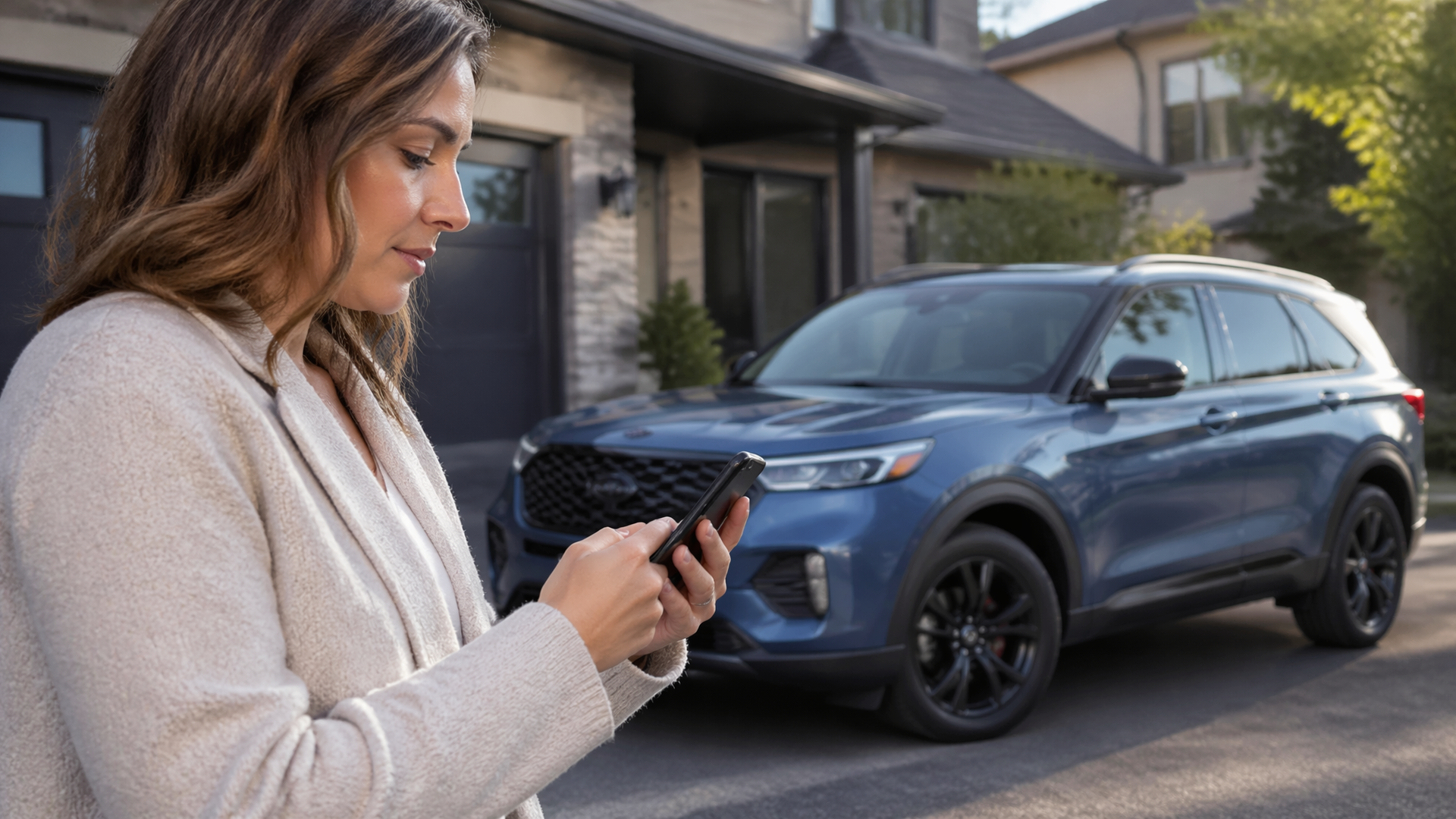
FordPass App: Features, Subscription Cost, and How to Set It Up
The FordPass app is Ford’s free smartphone companion that lets you remotely start, lock, and locate your vehicle, check fuel and oil levels, schedule service, and access roadside assistance. The core app costs nothing to download, and the most useful remote features are included at no charge for the original owner for as long as they own the vehicle. The only paid tier is Ford Connected Service plans, which apply to used vehicles after the complimentary five-year period expires — not to new vehicle owners.
If you’re shopping for a Ford or already own one, here’s what actually matters: which features work on your specific model year and trim, what happens when the complimentary connected services period ends, and how to get the app running in under ten minutes without hitting activation snags.
What the FordPass App Actually Does
FordPass is a vehicle connectivity hub, not just a remote-start button. The feature set breaks down into four functional groups:
Remote vehicle controls
- Remote start and stop (engine on/off)
- Door lock and unlock
- Locate your vehicle on a map
- Horn and lights activation
- Remote window operation (select models)
Vehicle status and health
- Fuel level and estimated range
- Oil life percentage
- Tire pressure monitoring (TPMS readings)
- Service reminders and maintenance scheduling
- Warranty status display
Navigation and trip tools
- Send destinations from your phone to the vehicle’s SYNC navigation
- Save parking location
- View recent trip history and vehicle mileage
Owner services
- Roadside assistance request with GPS location sharing
- Service appointment booking
- Owner’s manual access
- FordPass Rewards points balance
The catch: not every Ford supports every feature. Remote start requires a factory-installed remote start system or the appropriate SYNC/modem hardware. Older models with SYNC 3 but no embedded modem lose remote features entirely because the app communicates through the vehicle’s cellular modem, not Bluetooth. For example, a 2017 Ford Escape with the base SYNC 3 system but no FordPass Connect option cannot receive remote commands, while a 2018 F-150 with the 4G LTE modem will support the full suite.
Subscription Cost: What’s Free, What’s Paid, and What Changes
FordPass is free to download from the Apple App Store or Google Play. There is no monthly subscription for the base app itself.
The remote features (start, lock, locate) are included free for as long as you own the vehicle if you’re the original owner. This is a meaningful distinction:
- Original owner: Remote features remain free for the life of your ownership. No expiration, no renewal, no hidden fee.
- Second owner (used vehicle): The complimentary connected services period is typically five years from the vehicle’s original in-service date, not from your purchase date. After that, remote features require a paid Ford Connected Service plan.
- Ford Connected Service plans (if applicable): Pricing varies by region and plan length. As of 2025, Ford has offered connected service plans around $10–$20 per month or $100–$200 per year for remote features on vehicles outside the complimentary window. Exact pricing depends on your vehicle’s hardware and your region, so verify current rates in the FordPass app under Account → Connected Services.
FordPass Rewards is a separate loyalty program. It’s free to join and earns you points (5 points per $1 spent) on dealer service, parts, and accessories. Points convert to dollars for future service visits. This is not a subscription — it’s a rebate program that functions similarly to a credit card rewards system.
What you should not pay for: The base app, remote start on a new Ford you bought, and basic vehicle status. If a dealer tries to sell you “FordPass Premium” as a mandatory add-on, that’s not a real product. There is no mandatory paid tier.
How to Set Up FordPass: Step-by-Step
Setup takes about 10 minutes if you have your VIN and the vehicle’s SYNC PIN handy. Here’s the sequence:
Step 1: Download and create an account
Install FordPass from your app store. Create a Ford account with your email address. Use the same email you used when purchasing the vehicle if possible — it speeds up vehicle verification because the dealership’s records will match your account profile.
Step 2: Add your vehicle
Tap the “+” icon or “Add Vehicle.” Enter your Vehicle Identification Number (VIN). The VIN is on the driver’s side dashboard near the windshield, on the driver’s door jamb sticker, and on your registration. A 17-character VIN is standard; if you enter fewer characters, you’ve likely missed a digit.
Step 3: Activate the modem
If your vehicle has an embedded modem (most Fords from 2017 onward with SYNC 3 or SYNC 4), you’ll need to activate the modem through the vehicle’s SYNC screen:
- In the car, go to Settings → Connectivity → Enable Vehicle Wi-Fi / Modem
- Accept the terms and conditions on the SYNC display
- The vehicle will connect to Ford’s network
This step is where most activation failures originate. If the modem was never activated at the dealership during delivery, the app will show “Activation Pending” indefinitely until you complete this on-screen step.
Step 4: Set your SYNC PIN
In the vehicle, go to Settings → FordPass / Connectivity → Set PIN. This 4-digit PIN is required for remote commands. You’ll enter it in the app when sending remote start or lock commands. The PIN is stored locally in the vehicle’s SYNC module, not on Ford’s servers, which is why you must set it from inside the car.
Step 5: Complete activation in the app
Back in the app, follow the on-screen prompts to confirm activation. The app will show “Activating” for a few minutes. Once complete, you’ll see your vehicle’s fuel level, oil life, and the remote command buttons.
Step 6: Test remote start
Stand near the vehicle (or inside it for the first test), enter your PIN, and send a remote start command. The vehicle should start within 15–30 seconds. If it fails, check that the vehicle has at least 1/4 tank of fuel and that the hood is fully closed — both are safety interlocks that block remote start. On some Ford trucks, the tailgate must also be fully closed.
Common Activation Failures and How to Fix Them
Setup doesn’t always go smoothly. Here are the failure cases you’re most likely to hit, with specific fixes:
“Vehicle Not Found” or “Invalid VIN”
Double-check the VIN for typos — a single wrong character fails validation. If the VIN is correct but the app rejects it, your vehicle may have been built before the connected services hardware was installed. Some 2016–2017 base trims lack the modem entirely. For example, a 2017 Ford Focus S without the SYNC 3 Connect package has no cellular hardware, and no amount of app troubleshooting will change that. Fix: Contact FordPass support at 1-800-392-3673. They can verify whether your VIN has the required hardware.
Remote commands fail with “Request Timed Out”
The vehicle’s modem may be in sleep mode. Start the vehicle normally, let it run for 2–3 minutes, then retry. Check that the vehicle has cellular coverage. If it’s parked in a garage or underground lot, the modem can’t receive commands. Verify your phone has a data connection — the app sends commands through Ford’s servers, not directly to the car. This means if Ford’s servers are down (rare but possible during maintenance windows), remote commands will fail even with full signal on both ends.
App shows “Activation Pending” for hours
The modem activation can take up to 24 hours in some cases. Leave the vehicle running for 10–15 minutes to allow the modem to complete its handshake with Ford’s servers. If it persists past 24 hours, the modem may need a dealer-level reset. A Ford dealer can perform a modem reset under warranty — this is a covered repair on most vehicles still within their bumper-to-bumper warranty period.
SYNC screen shows “Modem Off” or “Connectivity Off”
This is a known issue on some SYNC 3 vehicles after battery disconnection or software updates. Fix: In SYNC, go to Settings → General → Master Reset. This clears the modem’s cached state. You’ll need to re-pair your phone afterward. If that doesn’t work, a dealer can force a modem reflash. This is a software-level fix that typically takes 30–45 minutes at the dealership.
Used vehicle won’t activate
If the previous owner never deactivated the vehicle from their FordPass account, you’ll see an error that the vehicle is already linked. Fix: Call FordPass support. They can unlink the previous owner’s account after you verify ownership with your registration and ID. This typically takes 10–15 minutes on the phone. Have your proof of purchase ready before you call — Ford requires documentation that you actually own the vehicle, not just that you possess the keys.
Pro Tips Worth Knowing
Tip 1: Set your PIN before you need it.
The SYNC PIN is required for every remote command. If you skip this step during setup, you’ll be locked out of remote start until you go back to the vehicle and set it. Common mistake: assuming the app’s login password is the same as the SYNC PIN — it is not. The PIN is set separately on the vehicle’s SYNC screen and is a distinct 4-digit code that only you should know.
Tip 2: Use the “Send to Vehicle” navigation feature before you walk out to the car.
If your Ford has built-in navigation, you can search for a destination in the app and send it to the vehicle’s SYNC system. The destination appears on the touchscreen when you start the car. This saves you from typing addresses while driving. The common mistake is skipping this and relying on Apple CarPlay or Android Auto — which works, but the native SYNC integration also lets you save the destination to your trip computer for future reference. Additionally, sending the destination through FordPass pre-loads the route so you don’t wait for GPS lock when you start driving.
Tip 3: Check your oil life in the app before scheduling service — it prevents unnecessary visits.
The app displays oil life as a percentage. Many owners schedule oil changes at 5,000 miles out of habit, but Ford’s intelligent oil life monitor typically triggers around 7,500–10,000 miles depending on driving conditions. Check the app’s oil life reading first. The common mistake is ignoring the percentage and following a fixed mileage interval, which either wastes money on early changes or risks running low on oil if you do heavy towing or idling. For example, a 2023 F-150 used primarily for highway commuting may show 30% oil life remaining at 7,000 miles, meaning an immediate oil change would be premature.
A Decision Rule That Actually Changes Your Setup Approach
The key decision criterion for FordPass isn’t “which phone you have” — it’s whether you’re the original owner or buying used.
- If you’re the original owner: Set up the app immediately, even if you don’t think you’ll use remote start. The complimentary connected services period starts at the vehicle’s in-service date. If you wait three years to activate, you don’t get three extra years — the clock is already running. Activating now costs nothing and locks in your free access. Additionally, Ford occasionally runs promotions that require an active FordPass account, such as extended warranty offers or service coupons delivered through the app.
- If you’re buying used: Check the vehicle’s in-service date before you finalize the purchase. Ask the dealer for the original warranty start date. If the vehicle is approaching the 5-year mark, you’ll need to budget for a paid Ford Connected Service plan if remote features matter to you. This can change your negotiation — a vehicle that’s 4.5 years old with no remaining complimentary connected services is worth less than an identical one with 6 months of free remote access left. A $150–$200 annual subscription cost over the next three years of ownership is a real expense that should factor into your offer.
This single distinction — original owner vs. used buyer — changes whether the app is a permanent free tool or a temporary perk with a future subscription cost.
Quick Fit Check: Does FordPass Make Sense for Your Situation?
Run through these five checks before you invest time in setup:
1. Does your vehicle have an embedded modem? — Check the window sticker for “SYNC Connect” or “FordPass Connect.” If it’s not listed, remote features won’t work. Pass/fail: If no modem, skip the app for remote features and rely on the key fob for remote start if your vehicle has that option.
2. Are you the original owner? — If yes, remote features are free for life. If no, find the in-service date. Pass/fail: If you’re a used buyer with less than 1 year of complimentary service left, decide if the paid plan is worth it before you commit to relying on the app.
3. Is your phone compatible? — FordPass requires iOS 14+ or Android 8.0+. Pass/fail: If your phone is older than 5 years, check compatibility before downloading. An outdated phone that won’t run the latest app version will leave you locked out of remote features.
4. Do you park where cellular coverage exists? — Remote start won’t work in underground garages or remote areas without cell signal. Pass/fail: If you park in a dead zone daily, the remote features are less useful, and the app’s value drops significantly.
5. Are you willing to set a SYNC PIN? — This is mandatory. If you won’t do it, the remote features are inaccessible. Pass/fail: If you refuse, you’re limited to status checks and service scheduling.
If you pass all five, the full feature set is worth setting up. If you fail the modem check, you can still use the app for service scheduling and the owner’s manual, but the remote features won’t work regardless of what you do.
Frequently Asked Questions
Is FordPass really free?
Yes, the base app and remote features are free for the original owner for as long as they own the vehicle. The only costs are optional: FordPass Rewards is free to join, and paid connected service plans only apply to used vehicles after the complimentary 5-year period expires.
Can I use FordPass without a subscription?
Yes. Original owners don’t need any subscription. Used vehicle owners can use the app for free after the complimentary period ends, but remote features will be disabled unless they purchase a connected service plan. Status checks like fuel level and oil life may also stop updating after the complimentary period, depending on the vehicle’s hardware.
Does FordPass work with any Ford model?
No. Remote features require a vehicle with an embedded cellular modem, which is standard on most Fords from 2017 onward with SYNC 3 or SYNC 4. Base trims from 2016–2017 and some commercial vehicles may lack the modem entirely. Check your window sticker for “FordPass Connect” to confirm.
What happens if I sell my Ford?
The new owner will need to create their own Ford account and link the vehicle. Ford’s system will require the previous owner to unlink the vehicle from their account, or the new owner must call FordPass support to verify ownership and force the transfer. Remote features for the new owner are covered under the remaining complimentary period, if any.
Why does my remote start fail when the fuel tank is low?
Ford’s remote start system has a safety interlock that blocks remote start when fuel is below approximately 1/4 tank. This is a federal safety requirement to prevent the vehicle from running out of fuel while unattended. Fill the tank and retry.
Can I start my Ford from anywhere in the world?
Yes, as long as both your phone and the vehicle have cellular coverage. The command routes through Ford’s cloud servers, so there’s no distance limit. The vehicle must be in a location with cellular service, and your phone must have a data connection.
FordPass is a genuinely useful tool for Ford owners, but its value depends entirely on your vehicle’s hardware and your ownership status. Set it up early if you’re the original owner, verify the in-service date before buying used, and don’t pay for anything unless you’ve confirmed the complimentary period has actually expired. The app does what it promises — just make sure your specific Ford is equipped to deliver on that promise before you rely on it.

Greedy Wheels is the founder and lead editor at Wheels Greed. With over 15 years of hands-on automotive experience — from rebuilding engines in a home garage to managing fleet maintenance for a regional logistics company — he brings real-world mechanical knowledge to every guide.
His work has been featured in automotive forums, owner communities, and dealership training materials. When he’s not researching the latest car owner questions, you’ll find him at a local track day, wrenching on his project car, or testing the newest OBD2 diagnostic tools.
At Wheels Greed, every article is reviewed against manufacturer service manuals, NHTSA bulletins, and verified owner reports. No AI-generated fluff. No guesswork. Just practical answers from someone who has turned the wrench.