Ford Key Fob, SYNC, and FordPass: Complete Setup and Troubleshooting Guide
If your Ford key fob won’t unlock the doors, your SYNC screen freezes, or the FordPass remote start won’t connect, start with the most likely fix: replace the fob battery (CR2032, about $5) and perform a SYNC master reset. These two checks resolve the majority of common issues across F-150, Explorer, Escape, Edge, Mustang, and Bronco models. Below you’ll find step-by-step instructions for each component, plus the factory door code location and MyKey settings.
 Ford Key Fob, SYNC, and FordPass: Complete Setup and Troubleshooting Guide” />
Key Fob Battery Replacement – All Models
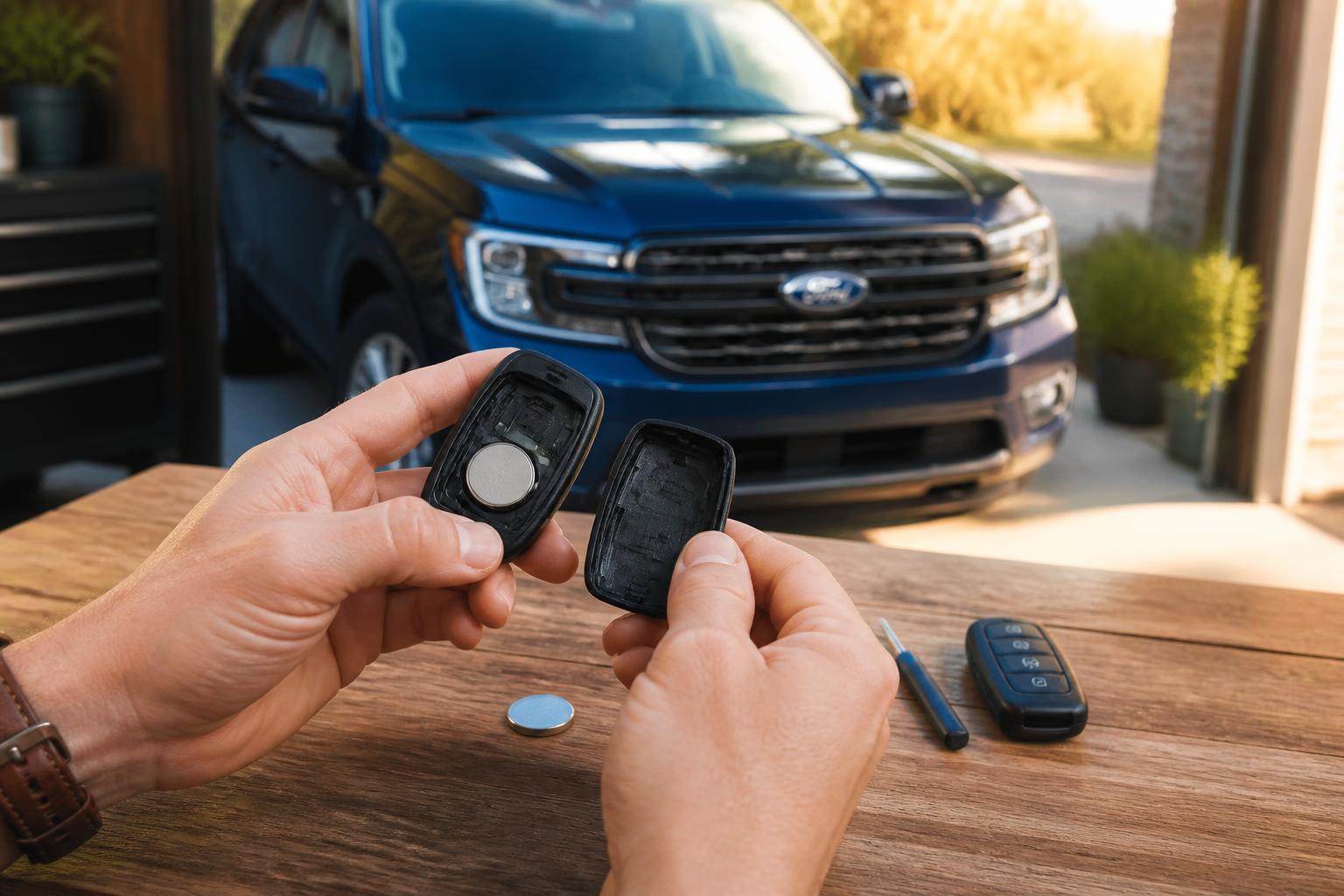
A weak battery causes intermittent range loss or no response from the vehicle. All Ford fobs use a CR2032 coin cell.
When to replace:
- Range drops noticeably (you need to stand next to the door)
- Dashboard warning “Key Fob Battery Low” (2015+ models)
- Remote start fails but the engine cranks manually
Steps for all models:
1. Locate the small slot on the back of the fob. Insert a flathead screwdriver or a coin and twist to pop the back cover off.
2. Remove the old battery and note the orientation (positive side up usually).
3. Insert a new CR2032 battery with the + facing up.
4. Snap the cover back on and test all buttons.
 Programming a New Key Fob” />
Model-specific note: On 2021+ F-150 and Bronco with the integrated key blade, slide the release tab on the side to remove the blade first, then pry the halves apart.
Programming a New Key Fob
Programming a replacement fob requires either two existing programmed keys or dealer tools.
If you have two working keys
This method works for most 2008–2023 Ford models (except some with passive entry/push-button start).
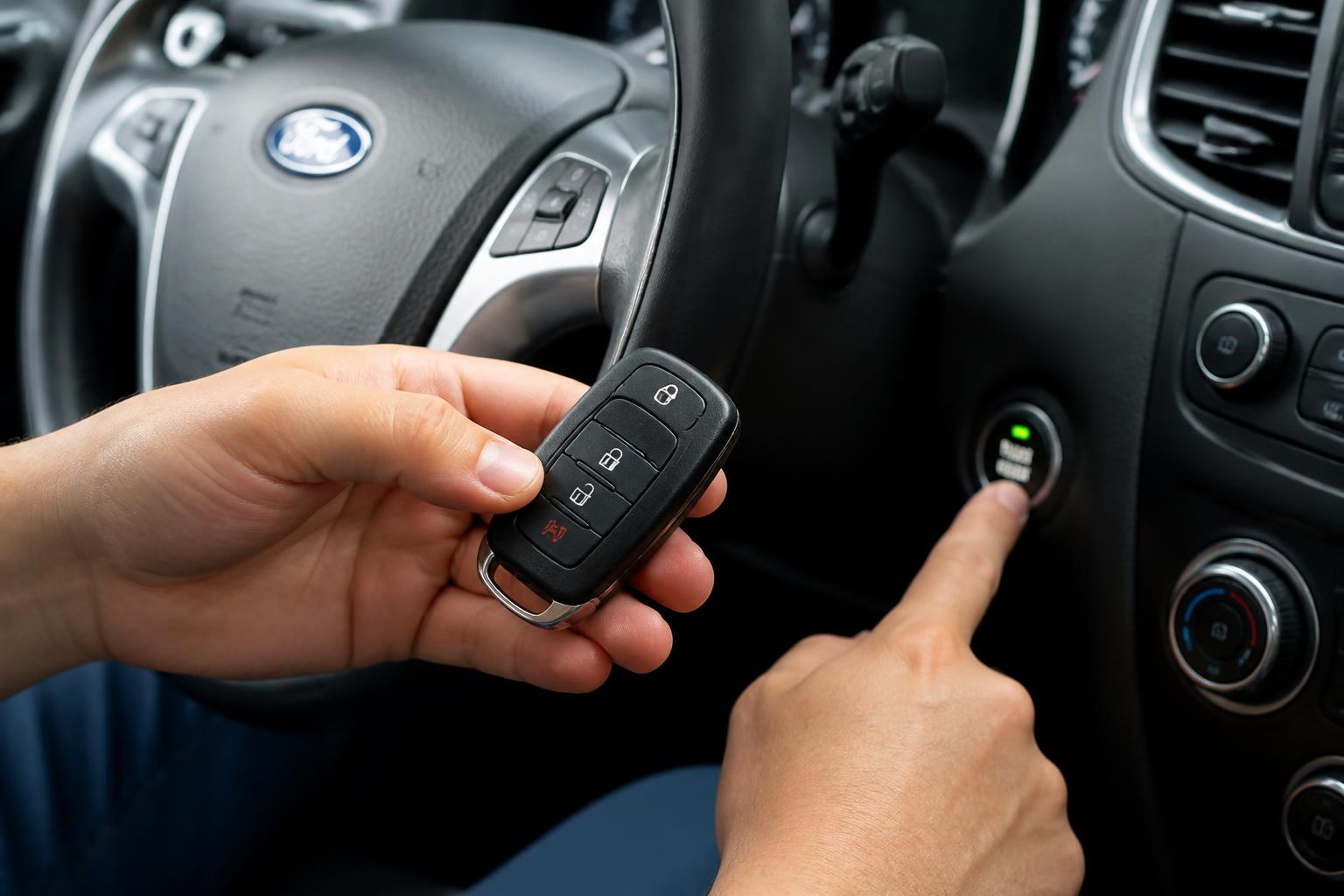
1. Insert the first working key into the ignition (if equipped) or hold it near the start button.
2. Turn to ON (do not start engine) and wait 3 seconds, then back to OFF.
3. Within 10 seconds, insert the second working key and repeat step 2.
4. Within 10 seconds, insert the new key. The vehicle should chirp the horn or flash the lights to confirm programming.
If you have only one key or push-button start
You’ll need a diagnostic tool (e.g., FORScan, IDS) or a locksmith. Verify programming fees with your dealer, as costs vary by location and model year. For 2019+ models with passive entry, the fob must be paired to the body control module – this cannot be done without dealer-level equipment.
Check your manual for exact model-year procedures; some use a sequence of lock/unlock presses instead of ignition cycles.
Realistic branch: After attempting the two-key procedure, if the new fob doesn’t produce a horn chirp or light flash within the 10-second window, do not repeat the sequence immediately. Wait 60 seconds with the key out of the ignition before trying again. If it fails twice, you likely need dealer tools – stop DIY attempts to avoid locking out your existing keys.
Remote Start via Key Fob and FordPass App
Using the key fob
- Press Lock once, then press 2x the Remote Start button (typically a circular arrow icon).
- The vehicle should start and run for 10 minutes (can be extended once via the app).
- To cancel, press the Remote Start button once.
If the fob remote start doesn’t work, try replacing the battery (above) and make sure the hood is fully closed – Ford’s anti-theft system prevents remote start with the hood open.
Using the FordPass app
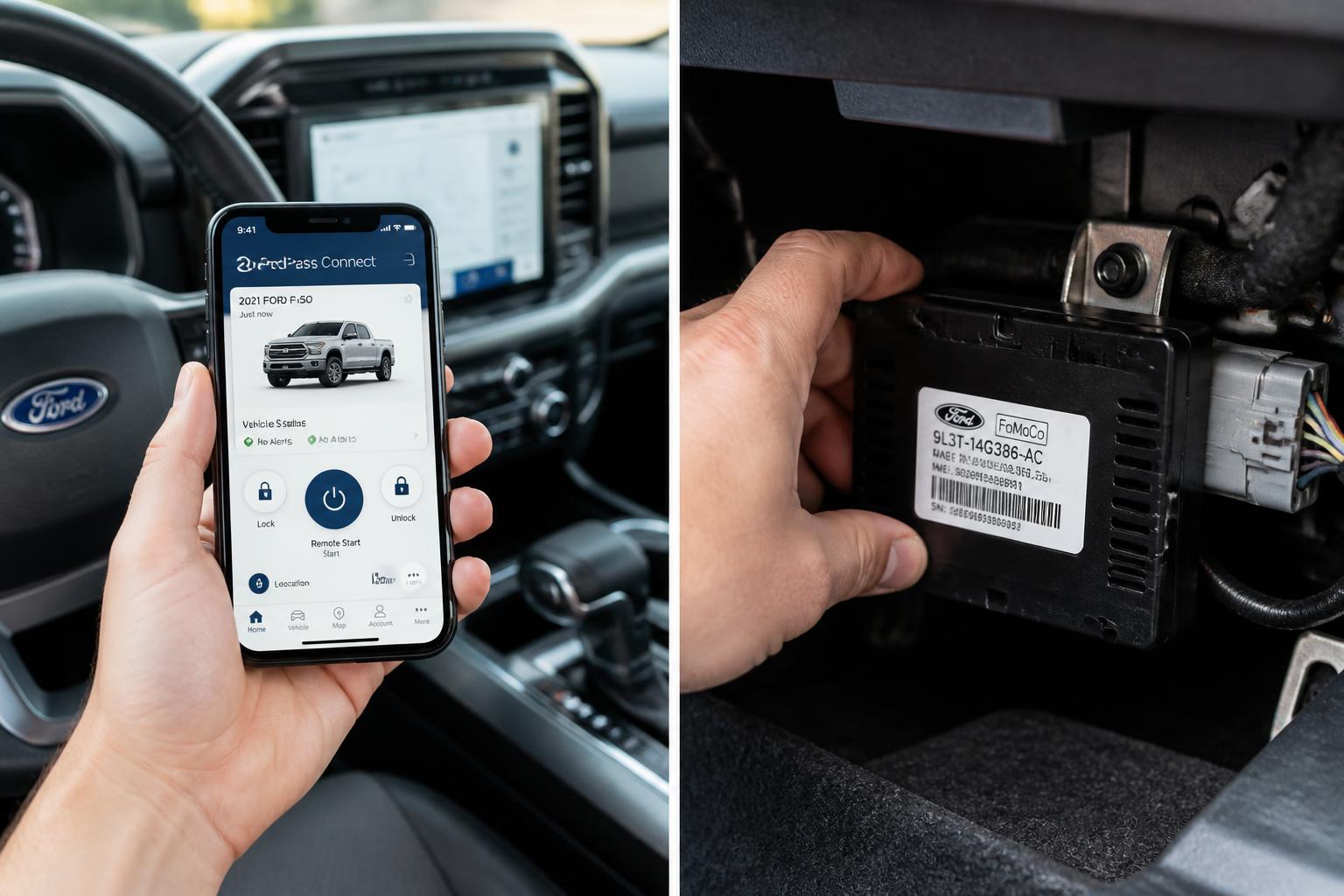
FordPass Connect is standard on 2020+ models (with modem) but requires activation.
Setup:
1. Download the FordPass app on iOS or Android.
2. Create or log in to your Ford account.
3. Enter your VIN when prompted.
4. Activate the modem inside the vehicle (takes 5–10 minutes). Ensure you have a strong cellular signal.
5. In the app, tap Remote Start. The vehicle must be parked, locked, and in park.
Common failure: “Unable to connect” – This usually means the modem has a weak signal (try moving to an open area) or the FordPass subscription has lapsed. Check your account under Services > Connected Services – a free 4-year subscription comes with new vehicles but requires renewal after.
Stop and escalate threshold: If the app still shows “Unable to connect” after moving to an area with at least four bars of LTE signal and confirming the subscription is active, contact FordPass support at 1-800-392-3673. They can push a modem reset from their side. Do not attempt to replace the modem yourself.
SYNC 3 and SYNC 4 Reset and Troubleshooting
When the screen freezes, Bluetooth won’t pair, or navigation lags, try a soft reset before anything else.
Soft reset (no data loss)
For SYNC 3 (2016–2020) and SYNC 4 (2021+):
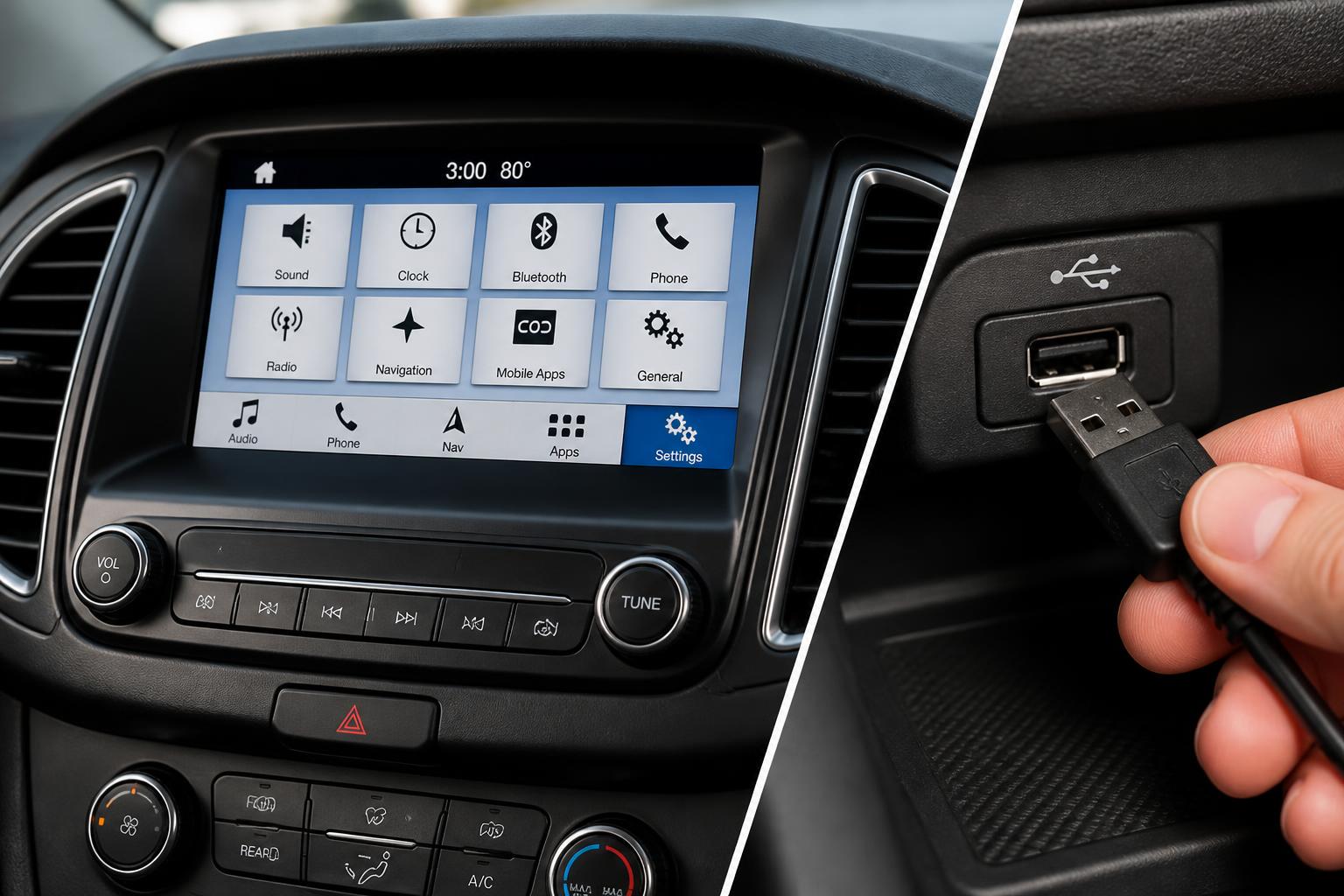
1. Press and hold the Volume Down button and the Seek Right button (or Next Track on SYNC 4) together for 10–15 seconds.
2. The screen will go black and the Ford logo will reappear. Release when the system begins restarting.
3. Allow 1–2 minutes for a full reboot.
Master reset (clears all paired phones and settings)
Use only if the soft reset doesn’t solve the problem.
1. Go to Settings > General > Factory Reset (or Master Reset on some SYNC 3 versions).
2. Enter the PIN (default is 0000 unless you changed it).
3. Confirm. SYNC will reboot in factory condition. You will need to re-pair phones and re-enter Wi-Fi passwords.
Realistic branch: If after master reset the screen still freezes within the first 5 minutes, the issue is likely hardware-related (faulty APIM module) rather than software. Schedule a dealer visit – do not keep resetting, as it will not fix a failing module.
SYNC updates
Most SYNC 3 systems can be updated via USB or over-the-air (SYNC 4). To check for updates manually:
- Go to Settings > General > System Information – note the software version.
- Visit Ford’s SYNC update site with your VIN to download the latest file to a USB drive (FAT32 format, 32GB max).
- Insert the USB into the vehicle’s port (usually under the climate controls) while the engine is running. Follow on-screen prompts. Do not remove the USB until the update completes (can take 20–40 minutes).
FordPass Connect Setup and Modem Troubleshooting
What it enables:
- Remote start, lock/unlock, vehicle status via app
- Wi-Fi hotspot (requires data plan)
- Stolen vehicle locator
Activation process:
1. Ensure your vehicle has the embedded modem (look for a small antenna fin on the roof and a “FordPass Connect” badge on the rear window).
2. In the vehicle, press the Wi-Fi button in the rearview mirror or go to Settings > Wi-Fi and toggle it on.
3. In the FordPass app, go to Account > Connected Services > Activate Modem. The system will try to contact Ford’s servers – a green checkmark indicates success.
4. If activation fails, call FordPass support at 1-800-392-3673 (they can push a reset from their side).
Modem resets:
- Hard reset: Disconnect the vehicle’s 12V battery negative terminal for 10 minutes. This forces the modem to reboot.
- Fuse pull: Locate the TCU (telematics control unit) fuse in the interior fuse box (check your owner’s manual) and remove it for 30 seconds.
Stop and escalate threshold: If neither battery disconnect nor fuse pull resolves activation, and FordPass support confirms the modem is functional, the TCU itself may need replacement. This requires dealer diagnosis – do not attempt to swap the TCU yourself, as it must be programmed to the vehicle.
MyKey Configuration – Setting and Clearing Speed Limits
MyKey lets you restrict certain vehicle behaviors for secondary drivers (e.g., teen drivers). You need at least one admin key (the one that came with the vehicle that is not already a MyKey).
To create a MyKey:
1. Insert the admin key and start the engine.
2. Go to Settings > Vehicle > MyKey > Create MyKey.
3. Choose restrictions: max speed (usually 80 mph), volume limiter, seatbelt reminder, etc.
4. Follow the prompts. The key is now a MyKey.
To clear all MyKeys:
1. Use an admin key that has never been a MyKey. If you don’t have one, you must use a dealer tool.
2. In the MyKey menu, select Clear MyKey or Erase All MyKeys.
3. Confirm with the admin key. All previous MyKey settings are removed.
Important: If you lose all admin keys, Ford dealers can program a new admin key using IDS (verify pricing with your local dealer). A simple locksmith copy will still be a MyKey.
Finding the Factory Door Code
The factory door code is a 5-digit number that unlocks the driver’s door from the keypad on the B-pillar. It never changes unless you manually reprogram it.
Location by model:
- All models (2015+): Look in the glove box, inside the small bin near the driver’s left knee, or on the module behind the rearview mirror. The code is printed on a white sticker with “CODE.”
- Older models (pre-2015): Check the owner’s manual packet for a credit-card-sized card with the code. It may also be written on the BCM (body control module) behind the glove box.
- If you can’t find the sticker: Take the code from the factory envelope in the glovebox, or have a dealer retrieve it using the VIN (ask about any fees before they run the lookup).
To change the code:
1. Press the 1/2 button on the keypad until the lock cycle completes (or press the 7/8 and 9/0 buttons simultaneously on some models).
2. Enter the factory code within 5 seconds.
3. Press 1/2 again within 5 seconds.
4. Enter your new 5-digit code. Press 3/4 to confirm. You can still use the factory code as backup.
Frequently Asked Questions
My key fob works but remote start via the fob doesn’t – what’s wrong?
The most common cause is the hood is not fully latched. Ford’s remote start inhibit prevents the system from engaging if any door is ajar, the hood is open, or the transmission is not in Park. Also check that the battery in the fob is fresh.
Can I program a used key fob from another Ford to my car?
No. Key fobs are VIN-specific and cannot be reused from another vehicle. You must purchase a new fob programmed for your car. A locksmith can sometimes erase and reprogram a fob if it is from the same model family, but this is not recommended – new fobs are typically $30–$80 plus programming.
Why does my SYNC screen say “USB device not supported” after an update?
The USB drive likely is not formatted as FAT32 or is larger than 32GB. Format the drive using a computer (choose FAT32) and copy only the single uncompressed file from Ford’s site (do not unzip the folder). Use a drive that is 32GB or smaller.
How do I know if my vehicle has FordPass Connect?
Look for a small antenna fin on the roof and a “FordPass Connect” badge on the rear window. If you see neither, check the window sticker or your owner’s manual for modem specifications.
Explore This Topic

Greedy Wheels is the founder and lead editor at Wheels Greed. With over 15 years of hands-on automotive experience — from rebuilding engines in a home garage to managing fleet maintenance for a regional logistics company — he brings real-world mechanical knowledge to every guide.
His work has been featured in automotive forums, owner communities, and dealership training materials. When he’s not researching the latest car owner questions, you’ll find him at a local track day, wrenching on his project car, or testing the newest OBD2 diagnostic tools.
At Wheels Greed, every article is reviewed against manufacturer service manuals, NHTSA bulletins, and verified owner reports. No AI-generated fluff. No guesswork. Just practical answers from someone who has turned the wrench.