Connecting your iphone to subaru bluetooth: a guide
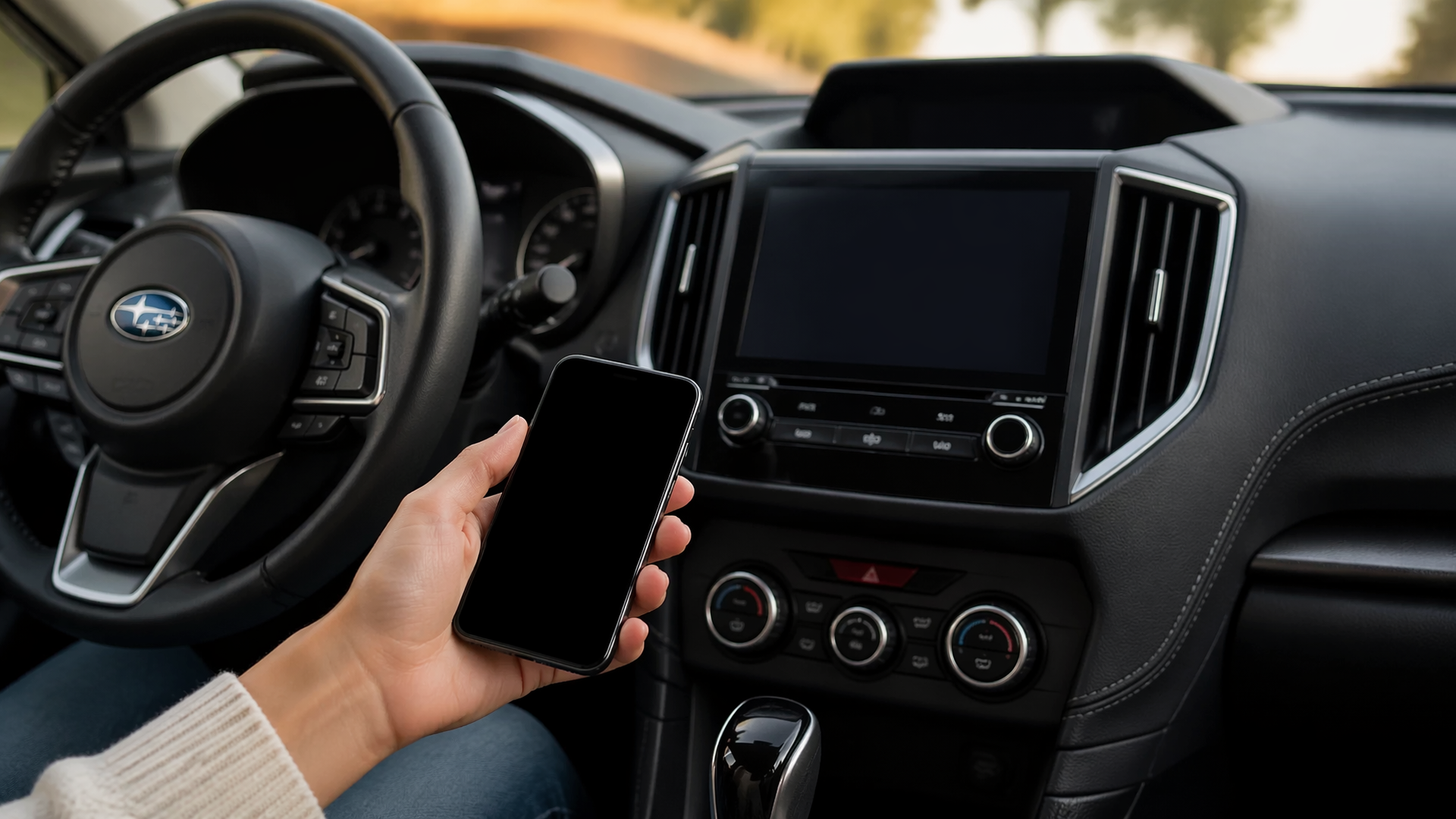
Connecting your iPhone to your Subaru’s Bluetooth system is a straightforward process that enables hands-free calling and wireless audio streaming. Most Subaru models manufactured from the mid-2010s onward are equipped with this feature, making it easy to integrate your phone with the car’s infotainment system. The general steps involve activating Bluetooth on both your iPhone and your Subaru, then initiating the pairing sequence through your car’s display.
Preparing Your Subaru for Pairing
Before you can connect your iPhone, you need to make your Subaru’s infotainment system ready to receive a new connection.
1. Access Infotainment Settings: On your Subaru’s touchscreen or infotainment display, locate and select the “Settings” or “Setup” option.
2. Navigate to Bluetooth Menu: Within the settings, find and select the “Bluetooth” or “Phone” menu.
3. Enable and Discover: Ensure that Bluetooth is turned on for your vehicle. Then, choose an option like “Add Device,” “Pair Device,” or “Connect New Device.” This action makes your Subaru’s system discoverable by your iPhone.
Pairing Your iPhone
With your Subaru’s system set to discover, you can now initiate the pairing from your iPhone.
1. Open iPhone Bluetooth Settings: On your iPhone, go to the “Settings” app and tap on “Bluetooth.” Make sure the Bluetooth toggle switch is in the “On” position.
2. Locate Your Subaru: Your iPhone will begin scanning for nearby Bluetooth devices. In the list of available devices, look for your Subaru’s name. This is often displayed as “Subaru” followed by a model identifier or a generic name.
3. Confirm Pairing: Once your Subaru appears, tap on its name. Both your iPhone and your Subaru’s display may show a pairing code. Visually confirm that the codes match on both devices and then accept the pairing request on both your iPhone and your Subaru’s screen.
4. Allow Permissions: Your Subaru’s system may prompt you to allow access to your iPhone’s contacts and call history. Granting these permissions is necessary for features such as caller ID display and accessing your phonebook through the car’s interface.
Confirming a Successful Connection
After completing the pairing steps, it’s essential to verify that your iPhone and Subaru are communicating correctly.
1. Check Device Status: On your iPhone, under “My Devices” in the Bluetooth settings, your Subaru should now be listed as “Connected.” Your Subaru’s infotainment screen should also indicate that your iPhone is paired.
2. Test Audio Playback: Stream music or a podcast from your iPhone. The audio should now play through your Subaru’s speakers. Test basic playback controls, such as play, pause, and skip, using your car’s steering wheel buttons or infotainment system.
3. Test Hands-Free Calling: Make a short test call to a contact. Confirm that you can hear the other person through the car’s speakers and that they can hear you clearly through the car’s built-in microphone.
Addressing Common Bluetooth Connection Problems
If you encounter difficulties pairing or maintaining a connection, several common issues can often be resolved with simple troubleshooting.
Device Limit Reached
Subaru’s infotainment systems have a limit on the number of Bluetooth devices they can store. If you’ve previously paired many phones or devices, your system may be full.
- Action: Navigate to your Subaru’s Bluetooth settings and remove any old or unused devices from the paired list. After clearing space, attempt to pair your iPhone again.
Temporary Software Glitches
Occasionally, a minor software hiccup in either your iPhone or your Subaru’s infotainment system can prevent a successful connection.
- Action: Try restarting both your iPhone and your Subaru’s infotainment system. For the car, this often means turning the ignition off, opening and closing the driver’s door to ensure all systems power down, and then restarting the vehicle. A simple restart of your iPhone usually resolves software issues on that end. Also, ensure your iPhone’s iOS and your Subaru’s infotainment software are updated to their latest versions.
Incorrect Pairing Sequence
Sometimes, simply re-doing the pairing process with careful attention to each step can fix the problem.
- Action: Temporarily disable Bluetooth on any other nearby phones or devices that might try to connect automatically. Follow the pairing steps precisely as outlined above, paying close attention to the confirmation prompts and pairing codes displayed on both devices.
Bluetooth Discoverability Issues
If your iPhone cannot find your Subaru, or your Subaru cannot find your iPhone, the Bluetooth radios may not be discoverable.
- Action: Double-check that Bluetooth is enabled on both your iPhone and your Subaru. On your Subaru, ensure you are actively in the “Add Device” or similar pairing mode. On your iPhone, verify it is actively scanning. If these steps do not resolve the issue, consult your Subaru owner’s manual for model-specific guidance or contact a Subaru dealership.
When to Escalate for Assistance
If you have diligently followed all troubleshooting steps and are still unable to establish a Bluetooth connection between your iPhone and your Subaru, it is advisable to seek further help. This could involve a more in-depth review of your Subaru’s owner’s manual for any model-specific nuances, or contacting a Subaru dealership. There’s a possibility of a hardware issue with the vehicle’s Bluetooth module, or your specific iPhone model might require a unique pairing method not covered in general guides.
Explore This Topic
- A Guide To Connecting Your Iphone To Your Subarus Bluetooth
- Connecting Your Phone To A Subaru A Bluetooth Guide
- Subaru Bluetooth Not Connecting

Greedy Wheels is the founder and lead editor at Wheels Greed. With over 15 years of hands-on automotive experience — from rebuilding engines in a home garage to managing fleet maintenance for a regional logistics company — he brings real-world mechanical knowledge to every guide.
His work has been featured in automotive forums, owner communities, and dealership training materials. When he’s not researching the latest car owner questions, you’ll find him at a local track day, wrenching on his project car, or testing the newest OBD2 diagnostic tools.
At Wheels Greed, every article is reviewed against manufacturer service manuals, NHTSA bulletins, and verified owner reports. No AI-generated fluff. No guesswork. Just practical answers from someone who has turned the wrench.