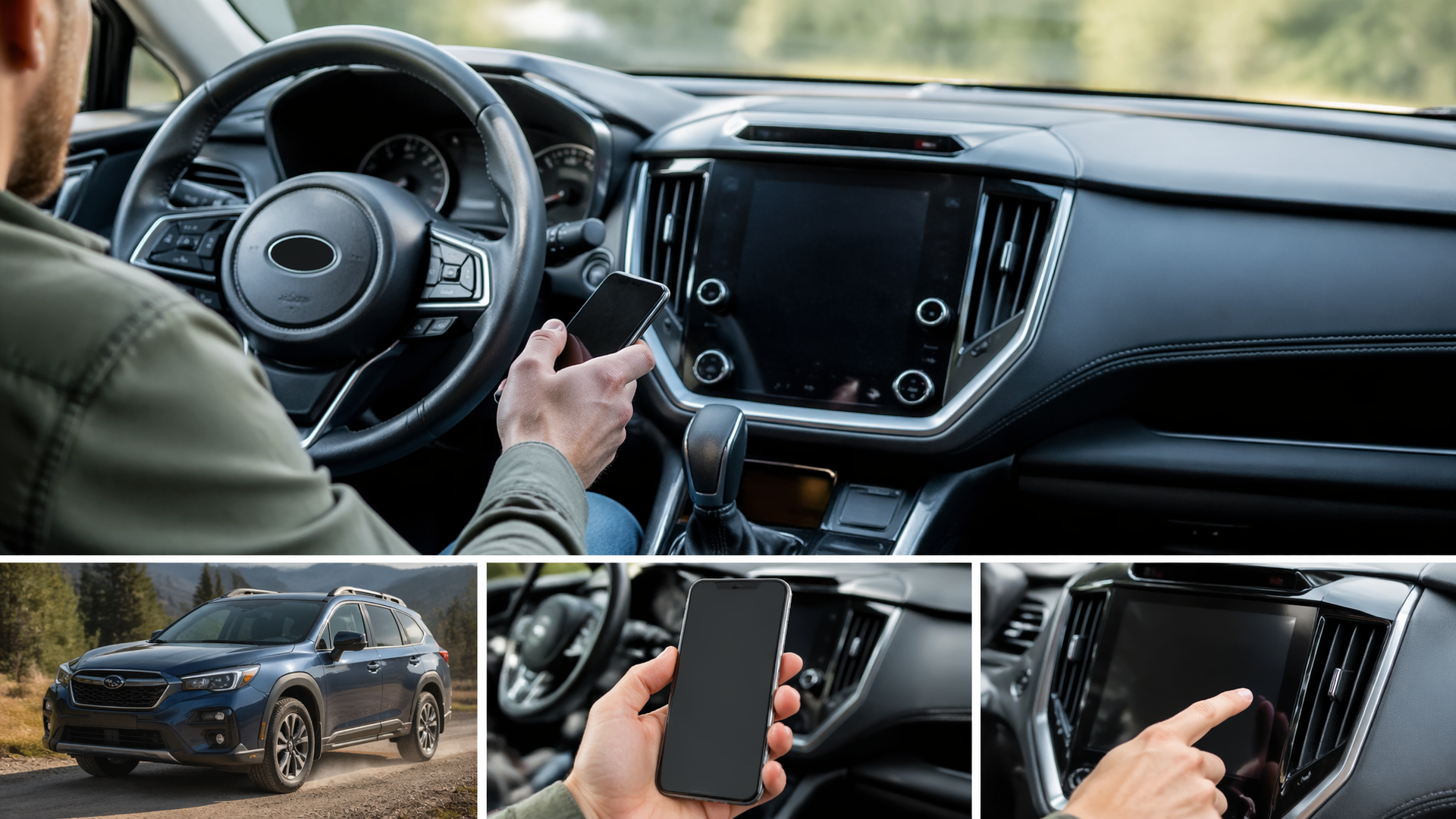
Connecting Your Phone to Subaru Outback Bluetooth
Pairing your phone to your Subaru Outback’s Bluetooth system is a straightforward process that unlocks hands-free calling and audio streaming. This guide will walk you through the steps to connect your smartphone to your Outback, ensuring a safe and convenient driving experience.
Before You Begin: Vehicle and Phone Readiness
Before starting the pairing process, ensure your Subaru Outback is in Park and the ignition is on (accessory mode is usually sufficient). On your smartphone, navigate to the Bluetooth settings and make sure Bluetooth is enabled and discoverable. For models prior to 2010, Bluetooth connectivity might not be standard, so it’s wise to check your owner’s manual or the vehicle’s infotainment system for Bluetooth options.
Initiating the Pairing Sequence
The exact menu names may vary slightly depending on your Outback’s model year and infotainment system, but the general sequence for connecting your phone is as follows:
1. Access the Infotainment Menu: On your Outback’s central touchscreen display, locate and select the “Setup” or “Settings” icon.
2. Navigate to Bluetooth Settings: Within the Setup menu, find and select the “Bluetooth” or “Phone” option.
3. Add a New Device: Look for an option such as “Add Device,” “Pair Phone,” or “Connect New Device.” Select this to make your Outback’s system discoverable.
4. Scan for Devices on Your Phone: On your smartphone, go to its Bluetooth settings and initiate a search for nearby devices.
5. Select Your Subaru: Your Outback’s Bluetooth system should appear in the list of available devices on your phone. Tap on its name (it may appear as “My Subaru,” “Car Multimedia,” or similar).
6. Confirm the Pairing Code: A unique pairing code or PIN will be displayed on both your phone’s screen and the Outback’s infotainment display. Visually verify that these codes match.
7. Approve the Connection: Confirm the pairing code on both devices. Your phone may then prompt you to allow access to contacts and call history; granting these permissions is necessary for full hands-free functionality.
8. Connection Confirmation: Once approved, the system should indicate that your phone is successfully paired and connected. You might see your phone’s name appear in a list of paired devices.
Verifying a Successful Connection
A successful connection is usually indicated by your phone’s name appearing in the “Paired Devices” list on the Outback’s infotainment screen. To further confirm, try playing music from your phone via the car’s audio system or initiate a quick test call. If audio plays clearly through the speakers or the call connects without issue, your phone is properly paired.
Troubleshooting Common Pairing Problems
If your phone doesn’t connect, several factors could be the cause.
- Bluetooth is Off: The most common issue is simply that Bluetooth is not enabled on either the phone or within the Outback’s settings. Double-check both.
- Device Limit Reached: Subaru infotainment systems typically have a limit on the number of paired devices. If your list is full, you may need to delete an older, unused device from the Outback’s system before adding your current phone.
- Interference or Distance: Ensure your phone is within a few feet of the infotainment system during the initial pairing. Other active Bluetooth devices or strong Wi-Fi signals can sometimes cause interference.
- Software Glitch: A temporary software hiccup in either your phone or the car’s system can prevent pairing. Try restarting both your phone and turning the Outback’s ignition off and then back on to reset the infotainment system.
Next Steps if Pairing Fails
If the initial pairing attempt doesn’t work, try “forgetting” or “unpairing” the device from both your phone’s Bluetooth list and your Outback’s paired devices list. Then, restart the entire pairing process from the beginning. Ensure your smartphone’s operating system is up to date, as older software versions can sometimes cause compatibility issues.
When to Escalate for Help
If you’ve followed these steps, confirmed Bluetooth is enabled, and cleared any old devices, but your phone still won’t pair with your Subaru Outback, there might be a hardware issue with the vehicle’s Bluetooth module or your phone. In this situation, it’s best to consult your Subaru Outback owner’s manual for model-specific troubleshooting or contact a Subaru dealership for professional assistance and diagnosis.
Explore This Topic

Greedy Wheels is the founder and lead editor at Wheels Greed. With over 15 years of hands-on automotive experience — from rebuilding engines in a home garage to managing fleet maintenance for a regional logistics company — he brings real-world mechanical knowledge to every guide.
His work has been featured in automotive forums, owner communities, and dealership training materials. When he’s not researching the latest car owner questions, you’ll find him at a local track day, wrenching on his project car, or testing the newest OBD2 diagnostic tools.
At Wheels Greed, every article is reviewed against manufacturer service manuals, NHTSA bulletins, and verified owner reports. No AI-generated fluff. No guesswork. Just practical answers from someone who has turned the wrench.